Understanding Webpage Scan
The Webpage Scan tool monitors public website pages for malware, injected spam, and malicious redirects that could harm visitors or search engine trust.
-
Public-facing webpage analysis — Analyzes all publicly accessible pages on your website, showing real-world user experience.
-
Signature-based malware detection — Uses a database of known malware signatures to identify threats.
-
Automated scheduling — Allows you to set up regular scans to ensure ongoing website security.
-
Scan history — Maintains a record of all previous scans for reference.
The results of the scan are displayed on the Webpage Scan page.
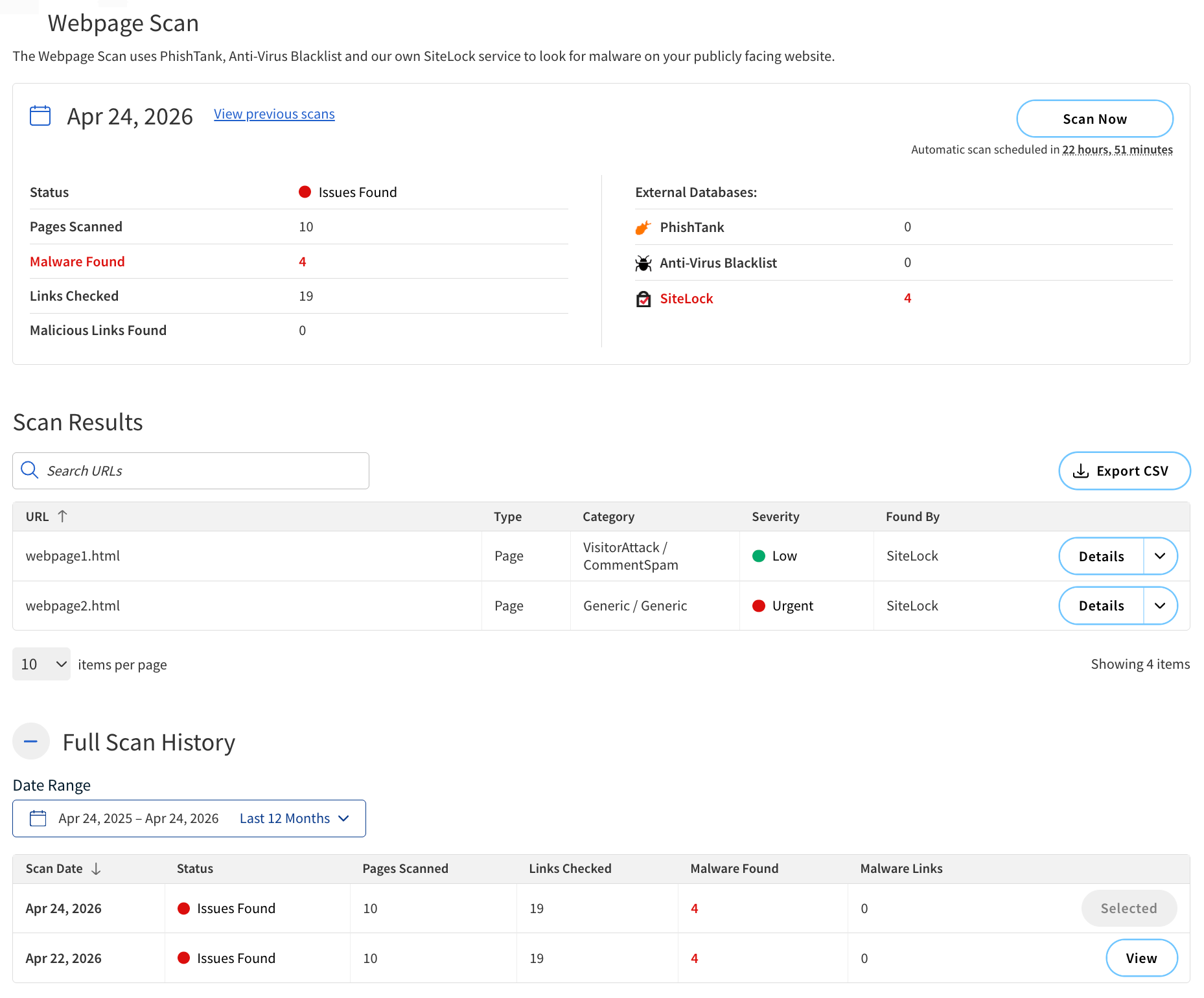
Report summary
The summary of the scan results is displayed at the top of the Webpage Scan page.
The following table describes the components of the summary.
| Component | Description |
|---|---|
Scan Time |
The date and time when the scan was performed. |
Status |
The overall status of the scan. Possible statuses include:
|
Pages Scanned |
The total number of pages scanned. |
Malware Found |
The total number of malware instances detected. |
Links Checked |
The total number of links checked. |
Malicious Links Found |
The total number of malicious links detected. |
PhishTank |
The total number of phishing threats detected. |
Anti-Virus Blacklist |
The total number of anti-virus blacklist issues detected. |
SiteLock |
The total number of SiteLock issues detected. |
Actions |
|
Scan Now |
Start a new scan. |
View previous scans |
View a list of previous scans and their results. |
Scan Results
Scan Results provides detailed information about the threats detected on a webpage, each one classified according to its type and severity.
| If malware detections are listed here following a SMART File Scan and SMART Database Scan, a manual malware clean may be necessary to fully resolve these issues. |
The following table describes the components in the Scan Results table.
| Component | Description |
|---|---|
URL |
The specific URL on your website where the malware was detected. |
Type |
The classification of the URL. |
Category |
The broader category under which the malware falls. |
Severity |
The level of threat posed by the malware. The possible severity levels include:
|
Found By |
The database used to detect the malware. |
Actions |
|
Details |
Expand the row and view a description of the detected malware. The following details are provided:
|
Full Scan History
Full Scan History displays a log of previous webpage scans.
The following table describes the components of this section.
| Column | Description |
|---|---|
Scan Date |
The date and time when the platform webpage scan was performed. |
Status |
The overall status of the scan. Possible statuses include:
|
Pages Scanned |
The total number of pages scanned. |
Links Checked |
The total number of links checked. |
Malware Found |
The total number of malware instances detected. |
Malware Links |
The total number of malicious links detected. |
Actions |
|
View |
View the detailed report of the scan. |
Filter by Date Range |
Filter the scan history by a specific date range. |