Understanding security report
The Security Report page provides a summary of your website’s security status.
-
Summarized health metrics — Results are summarized in a clear and concise manner, allowing you to quickly assess the overall health of your website.
-
Prioritized tasks — Security scans and features are organized according to the level of attention they require, with critical issues highlighted in red.
-
Actionable insights — Each component includes specific actions you can take to address any issues or improve your website’s security.
-
Upgrade opportunities — The report highlights additional features that are available for upgrade, allowing you to enhance your website’s security with just a few clicks.
The Security Report can be accessed from the website’s comprehensive site view.
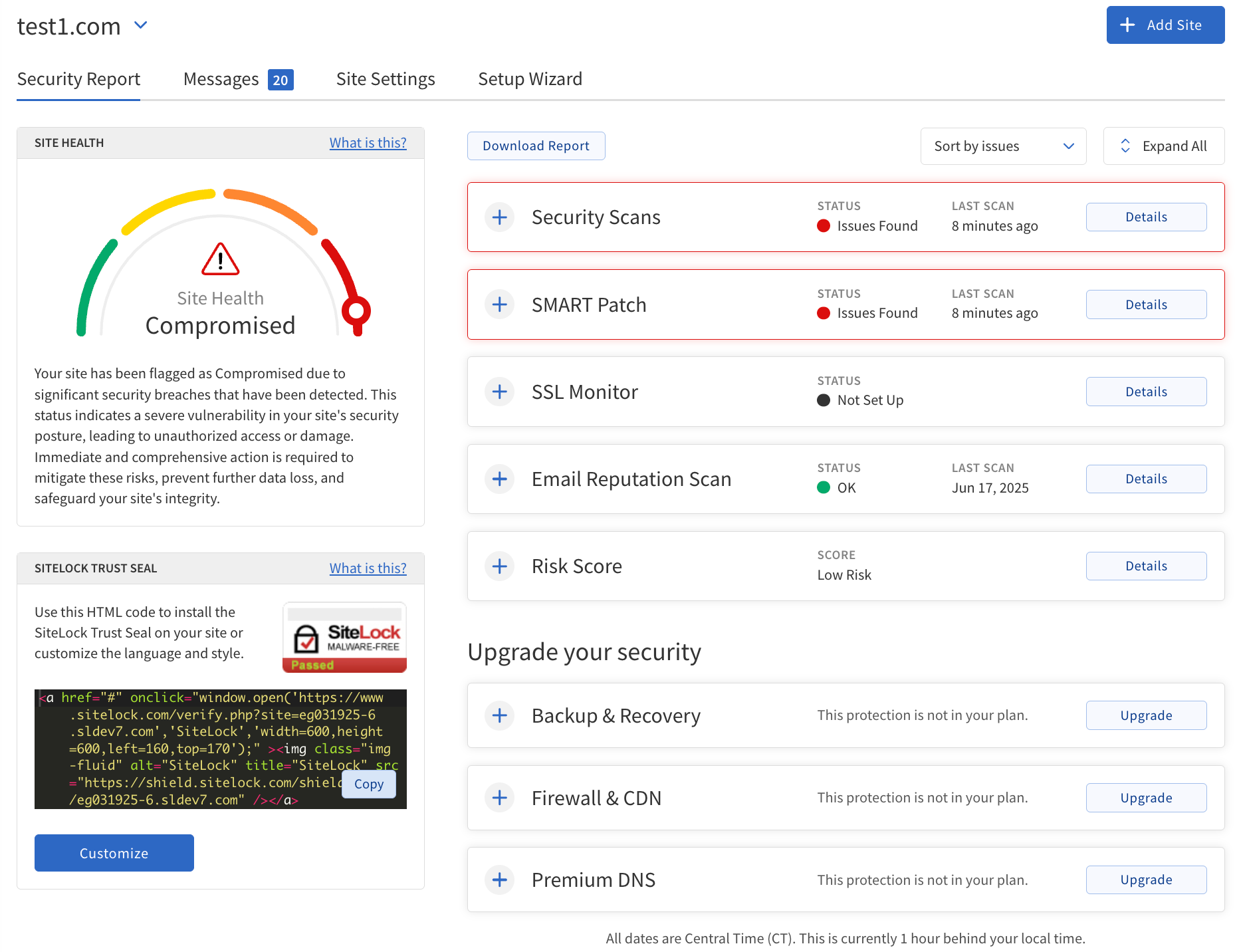
The following table describes the components of the Security Report.
| Component | Description |
|---|---|
Provides an overall health score for the website based on recent scan results and configuration status. |
|
A customizable seal that website owners can display on their website to assure visitors that their site is safe. |
|
Security Scans |
Summary of the latest scan results. Expanding this panel will display the summarized results of the latest scans for the following features: |
Provides the status of the website’s email reputation, including any detected issues such as blacklisting. |
|
Provides the status of the website’s SSL certificate, including any detected issues such as a certificate not found. |
|
Provides the status of backups and options for recovery. |
|
Provides the Web Application Firewall (WAF) and Content Delivery Network (CDN) status. |
|
Displays the latest information for the website’s SMART Patch, including vulnerabilities found, reverted, and patched. |
|
Risk Score |
A calculated value representing the overall risk level of the website based on detected vulnerabilities and configuration. The possible scores are:
|
Upgrade your security |
This section lists additional features that are available if you choose to upgrade your subscription. |
Actions |
|
Drop-down menu |
Switch between different sites in your account to view their respective security reports. This menu is available for accounts with multiple sites. Click the domain name in the top-left corner to open it. |
Download Report |
Download a |
Sort by Issues/Alphabetically |
Sort scan results alphabetically or by issues that need attention. |
Expand All |
Expand all panels. |
Expand icon |
Expand a specific panel. |
Set Up |
Open a specific feature’s configuration page to set it up or manage its settings. |
Details |
Open a specific feature’s details page to view more information and manage its settings. |
Scan Now |
Initiate a manual scan. This option is only available for the following features:
|
Upgrade |
Open a contact page with information on how to reach the SiteLock sales team to request an upgrade. |