Understanding your dashboard
This section describes the layout of the SiteLock dashboard.
Your dashboard navigation depends on your role as Owner or Viewer. It also depends on whether the account has a single site or multiple sites configured.
| To understand what actions you can perform based on your role, see User roles and privileges. |
Navigation panel
The navigation panel on the left side of the dashboard can include some or all of the following page tabs depending on your role and account configuration:
-
Overview — Provides a summary of the security status of your site(s).
-
Sites — Lists all sites for accounts with more than one site configured.
-
Messages — Lists notifications for all websites associated with the account.
-
Users — Lists all users for the account.
-
Help — Provides links to support resources.
Each page is described in detail in the following sections.
Overview
The default page after login is Overview.
-
If the account has multiple sites configured, the page is displayed as the Multiple sites overview.
-
If the account has only one site configured, the page is displayed as a Comprehensive site view.
| In accounts with multiple sites configured, you can navigate to a domain’s comprehensive view by navigating to the Sites page and clicking its name. |
Multiple sites overview
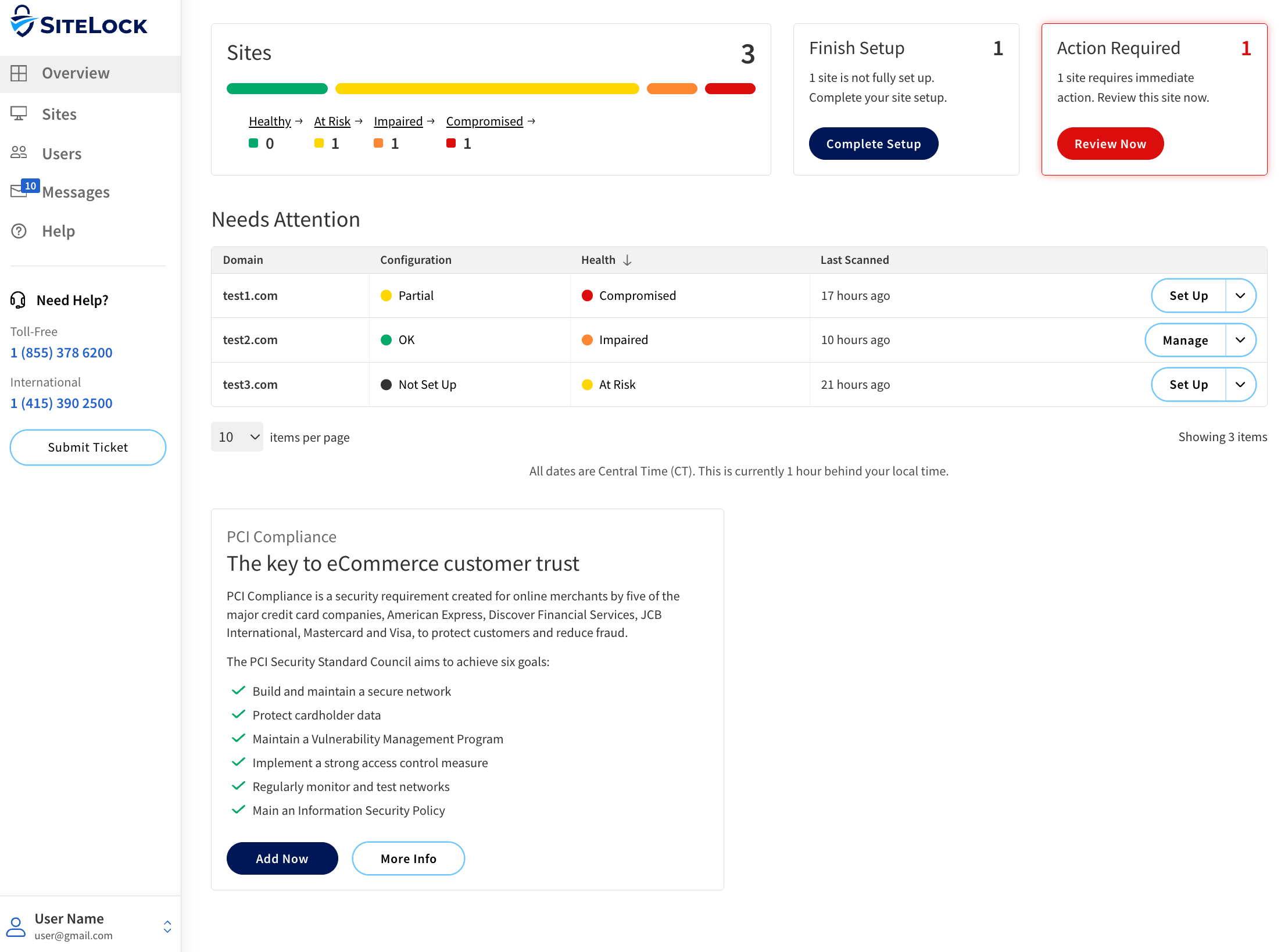
Each component that can appear in this page is described in the following table.
| Component | Description |
|---|---|
Sites |
The Sites panel summarizes all of your sites into categories based on their site health. |
Needs Attention |
The Needs Attention table lists sites that have incomplete configuration or compromised health. |
Action Required |
The Actions Required panel shows the number of detected threats or vulnerabilities in your sites. |
Finish Setup |
The Finish Setup panel is present when there are sites that are not fully configured. Clicking Complete Setup takes you to the Setup Wizard to complete the configuration of any sites that are not fully configured. |
No Issues Found |
The No Issues Found panel is present if there are no detected threats or vulnerabilities in any of your sites. Clicking View Sites takes you to the Sites page where you can view all of your sites and their health status. |
PCI Compliance |
The PCI Compliance panel is present when the account is eligible for the PCI compliance service. |
Actions |
|
Add Site |
The Add Site button takes you to a page with our contact information. Use the information to contact us if you want service added for an additional site on your SiteLock account. |
Comprehensive site view
The comprehensive site view displays detailed information about a site.
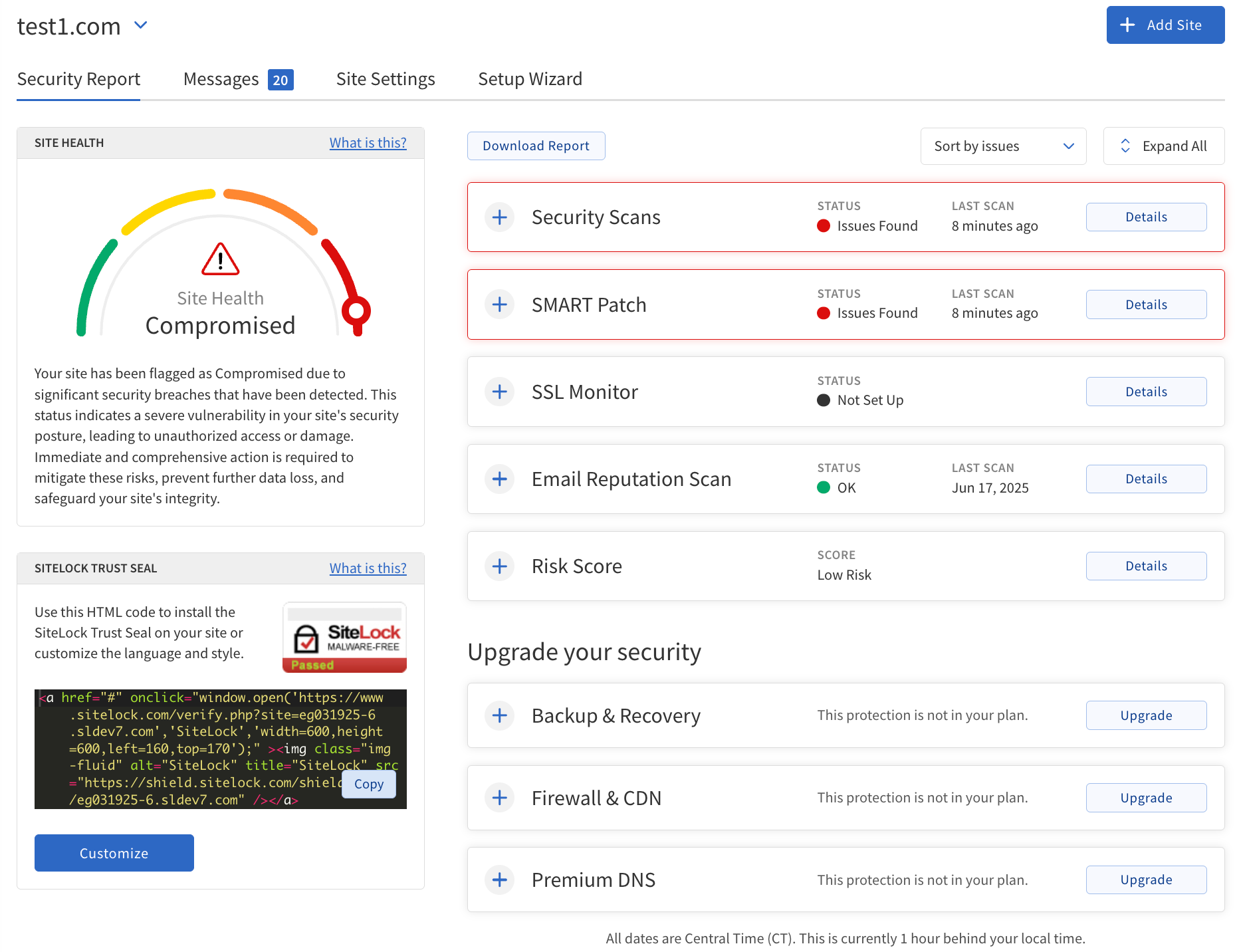
The following table describes how to use each of the components that can appear in this page.
| Tab | Use |
|---|---|
Security Report |
|
Setup Wizard |
|
Messages |
|
Site Settings |
|
Sites
The Sites page is present in the navigation panel if your account has multiple sites configured. It provides a view of all of the sites in your account.
All Sites table
The following table describes the All Sites table.
| Column | Description |
|---|---|
Domain |
The website address (URL) registered with your account. Clicking a domain takes you to its comprehensive site view. |
Configuration |
The current configuration status of your website. The possible statuses are:
|
Health |
The current health status of the site. The possible statuses are:
|
Last Scanned |
The date and time when the site was last scanned for threats or vulnerabilities. |
Actions |
|
Search domains |
Find a specific site by entering its domain name. |
Configuration filter |
Filter the table by configuration status. |
Health filter |
Filter the table by health status. |
Set up |
When present, the Set up button takes you to the Setup Wizard to complete the configuration of the site. |
Manage |
When present, the Manage button takes you to the Site Settings page for a fully configured site. |
Dropdown |
Provides quick access to the following pages:
|
Add Site |
The Add Site button takes you to a page with our contact information. Use the information to contact us if you want service added for an additional site on your SiteLock account. |
Items per page drop-down |
Select how many sites to display per page in the table. |
| Click on the column headers to sort the table by that column. |
Messages
The Messages page provides a centralized view of all account-wide notifications and alerts related to your SiteLock account.
For more information on managing messages, see Managing messages.
Users
The Users page allows you to manage all users associated with the SiteLock account.
For information on managing your users, see Managing users.
Account menu
The account settings menu is accessible by clicking on your user name located at the bottom left corner of the dashboard.
Some or all of the following options may be available in the account menu depending on your role:
-
My Profile — View and edit your user details and security settings.
-
Account Settings — Manage your account, billing information, and subscriptions.
-
Preferences — Set your notification and language preferences.