Understanding SMART Patch
The SMART Patch tool detects and automatically remediates vulnerabilities in your website’s software components by applying necessary patches.
| SMART Patch can only be used to address vulnerabilities on WordPress and Joomla websites. |
-
Automated patching — Automatically applies patches to known vulnerabilities in your website’s software components, reducing the risk of exploitation.
-
Vulnerability detection — Continuously scans your website for known vulnerabilities and identifies areas that require patching (e.g., outdated plugins or themes).
-
Rollback functionality — Allows you to revert patches if something breaks after applying them.
The results of the scan are displayed on the SMART Patch page.
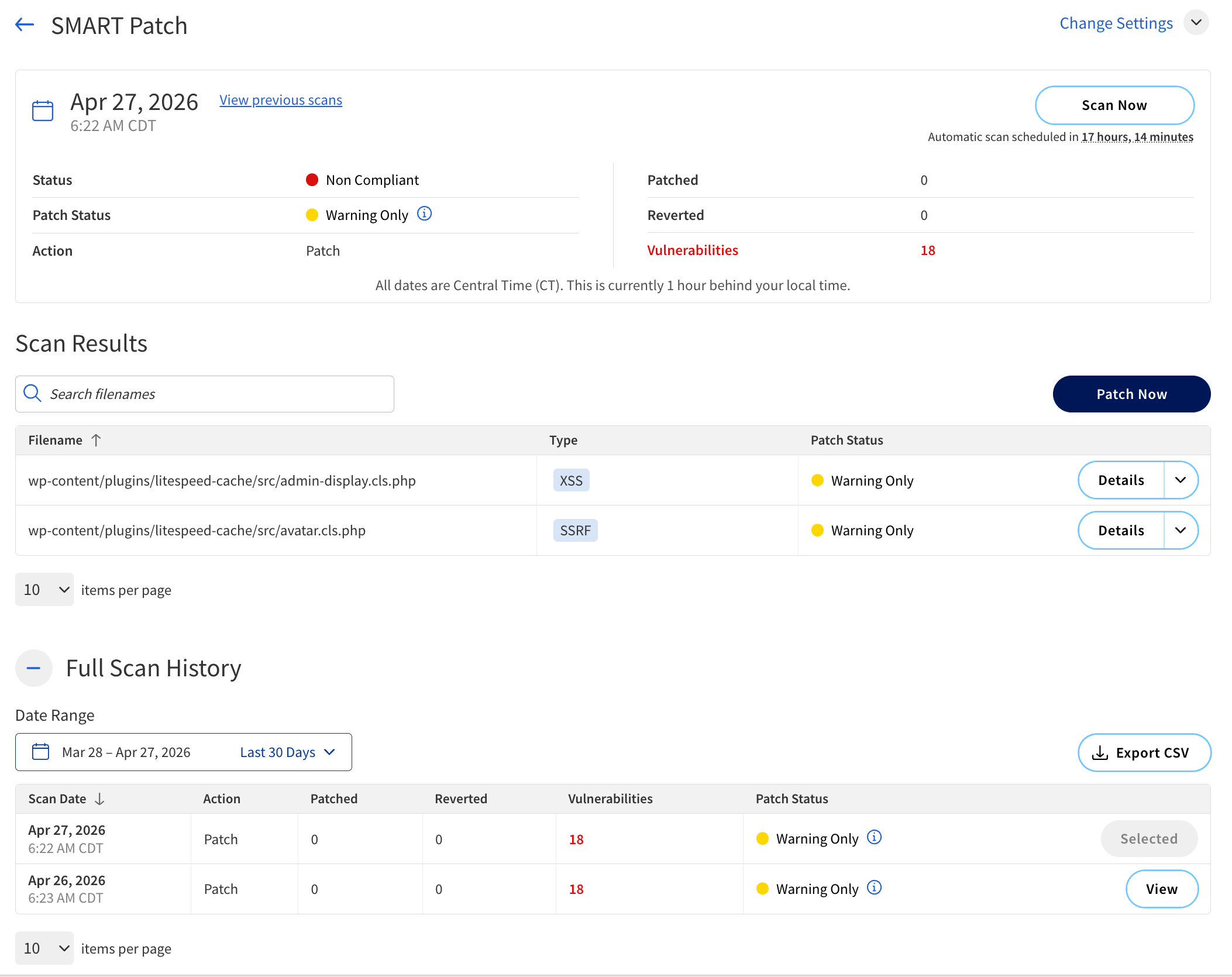
Report summary
The summary of the patch results is displayed at the top of the SMART Patch page.
The following table describes the components of the summary.
| Component | Description | ||
|---|---|---|---|
Scan Time |
The date and time when the last SMART patch scan was performed. |
||
Status |
The overall status of the scan. Possible values are:
|
||
Action |
The action of the last SMART Patch scan. Available options are:
|
||
Patched |
The number of vulnerabilities successfully patched during the last scan. |
||
Reverted |
The number of patches reverted during the last scan. |
||
Vulnerabilities |
The total number of vulnerabilities detected during the scan that have not been patched. |
||
Actions |
|||
Scan Now |
Start a new scan. |
||
Revert Patch |
Revert the last applied patch.
|
||
Back to most recent scan |
Return to the results of the most recent scan. |
||
Scan Results
Scan Results displays detailed information about the vulnerabilities detected in the files during the SMART Patch scan.
The following table describes the components of the Scan Results section.
| Column | Description | ||
|---|---|---|---|
Filename |
The name of the file where the vulnerability was detected. |
||
Type |
The type of vulnerability detected in the file (for example, SQL Injection, XSS). |
||
Patch Status |
The status of the patch. Available options are:
|
||
Actions |
|||
Patch Now |
Apply the patch to address the detected vulnerabilities.
|
||
Revert Patch |
Revert the patch applied to the file.
|
||
Full Scan History
The Full Scan History section provides a log of all previous SMART Patch scans performed on the website.
The following table describes the components of the Full Scan History section.
| Column | Description |
|---|---|
Scan Date |
The date and time when the scan was performed. |
Action |
The action taken during the scan. Available options are:
|
Patched |
The number of vulnerabilities successfully patched during the scan. |
Reverted |
The number of patches reverted during the scan. |
Vulnerabilities |
The total number of vulnerabilities detected during the scan that have not been patched. |
Patch Status |
The overall status of the scan. Possible values are:
|
Actions |
|
Date range filter |
Filter the scan history by date. |
View |
View the details of a specific scan on the SMART Patch page. |
Export CSV |
Export the list of infected files to a CSV file. |