Understanding SMART Database Scan
The SMART Database Scan tool identifies and remediates vulnerabilities, malware, and suspicious activity in your website’s databases.
-
Comprehensive scanning — Detects malware, spam links, and malicious code.
-
Platform detection — Automatically identifies your platform (WordPress, Joomla) and optimizes scanning.
-
Rollback functionality — Allows you to restore your database to its previous state before remediation, ensuring data integrity.
-
Scan history — Maintains a record of all previous scans for reference.
The results of the scan are displayed on the SMART Database Scan page.
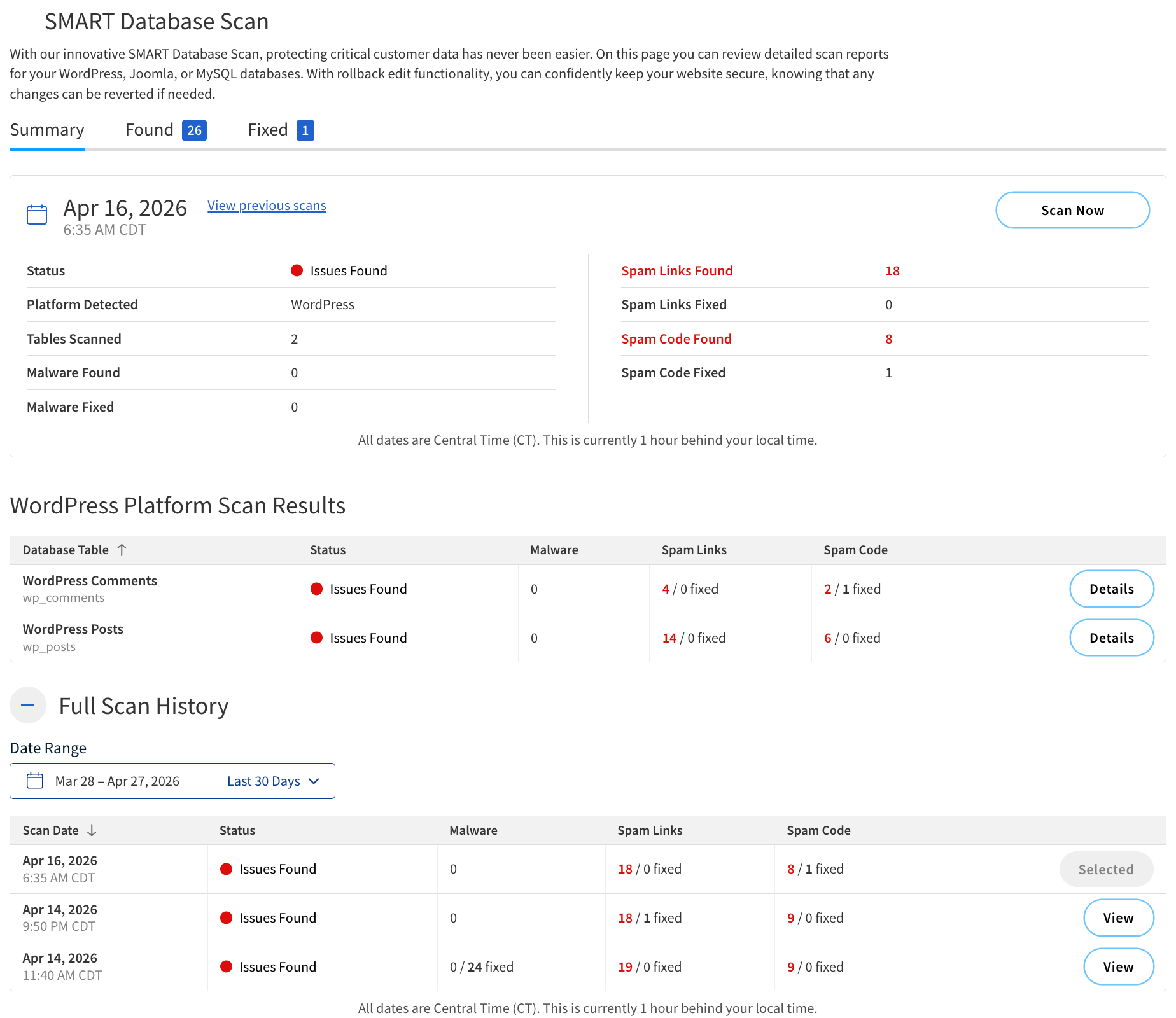
Summary tab
The Summary tab displays an overview of the most recent scan results, platform-specific details of the scan, and scan history.
Overview
The following table describes the components of the overview section.
| Component | Description | ||
|---|---|---|---|
Date and time |
The date and time when the scan was performed. |
||
Status |
The overall scan status. The possible statuses are:
|
||
Platform Detected |
The database platform/platforms detected on your website. The possible options are:
|
||
Tables Scanned |
The number of database tables scanned. |
||
Malware Found |
The number of malware instances detected. |
||
Malware Fixed |
The number of malware instances successfully fixed. |
||
Spam Links Found |
The number of spam links detected. |
||
Spam Links Fixed |
The number of spam links successfully fixed. |
||
Spam Code Found |
The number of spam code instances detected. |
||
Spam Code Fixed |
The number of spam code instances successfully fixed. |
||
Actions |
|||
View previous scans |
Open earlier results. |
||
Scan Now |
Start a new scan. |
||
Platform-specific scan results
Platform-specific scan results display details for each scanned database platform detected on your website.
The following table describes the components that may be present under Platform Scan Results.
| Component | Description |
|---|---|
Table title |
The database platform. Possible platforms are:
|
Database Table |
The name of the database table where the scan was performed. |
Status |
The overall scan status. The possible statuses are:
|
Malware |
The number of malware instances fixed versus remaining (for example, 1/0 = 1 fixed, 0 remaining). |
Spam Links |
The number of spam links fixed versus remaining (for example, 1/0 = 1 fixed, 0 remaining). |
Spam Code |
The number of spam code instances fixed versus remaining (for example, 1/0 = 1 fixed, 0 remaining). |
Actions |
|
Details |
View details about the detected threats found in the database table. |
Full scan history
Full scan history displays details about all previous scans performed on your website.
The following table describes the components under Full Scan History.
| Column | Description |
|---|---|
Date and time |
The date and time when the scan was performed. |
Status |
The overall scan status. The possible statuses are:
|
Malware |
The number of malware instances fixed versus remaining (for example, 1/0 = 1 fixed, 0 remaining). |
Spam Links |
The number of spam links fixed versus remaining (for example, 1/0 = 1 fixed, 0 remaining). |
Spam Code |
The number of spam code instances fixed versus remaining (for example, 1/0 = 1 fixed, 0 remaining). |
Actions |
|
Date range filter |
Filter the scan history by date. |
View |
Reload the SMART Database Scan page with the selected scan results. |
Found tab
The Found tab displays details about the detected threats found in the scan.
If your SMART Database Scan is set to only warn you about detected threats, the Found tab displays the details of the threats that were found during the scan and allows you to take action.
The Found tab is organized into sections, letting you choose how to address the detected threats:
-
Address all issues at once — Take bulk action to either fix or delete all issues in one step.
-
Address issues in this table individually — View and manage detected threats on a granular level, addressing each issue one by one.
| For automatic mode, the Found tab shows items that were detected and fixed during the scan. |
The following table describes the contents of the Address issues in this table individually section.
| Column | Description |
|---|---|
Comment/Post Record |
Information about the specific database record or post where the threat was detected. |
Malware |
Number of malware instances detected in the record. |
Spam Links |
Number of spam links detected in the record. |
Spam Code |
Number of spam code instances detected in the record. |
Actions |
|
Action |
|
Manage |
Display detected threat and take action.
|
Fixed tab
The Fixed tab appears when detected threats have been successfully remediated either through automatic remediation or manual action.
The following table describes the contents under Fixed records.
| Column | Description |
|---|---|
Comment/Post Record |
Information about the specific database record or post where the threat was fixed. |
Malware |
Number of malware instances detected in the record. |
Spam Links |
Number of spam links detected in the record. |
Spam Code |
Number of spam code instances detected in the record. |
Actions |
|
Action |
|
Manage |
Display details about the fixed threat and take action.
|
View |
View the details of the fixed threat in a pop-up window. |
| You can only revert fixes that were applied for the most recent scan. If you start a new scan after a fix is applied, the option to revert that fix will no longer be available. |