Understanding Backup & Recovery
The Backup & Recovery service safeguards your website data by creating secure backups of your files and databases.
-
Automated backups — Regularly backs up your data according to the schedule you set.
-
Data recovery — Restores your website to a previous state in case of data loss, corruption, or other issues.
-
Storage security — Stores your backups offline in a secure location.
You can manage the Backup & Recovery service through the Backup & Recovery page.
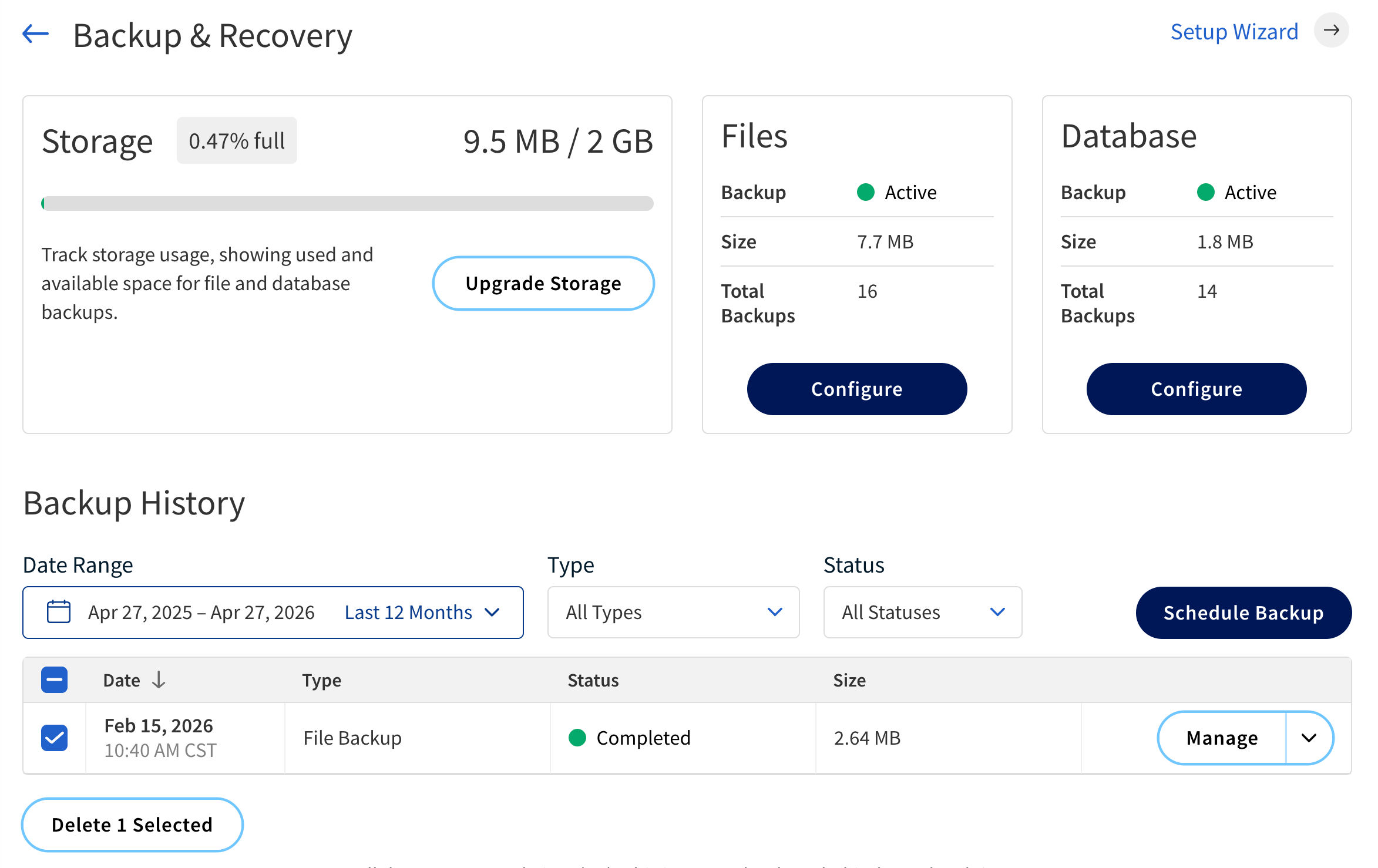
Backup & Recovery Metrics
The Backup & Recovery page provides key metrics to help you monitor backup status and storage usage.
The following table describes each component and its functions.
| Component | Description |
|---|---|
Progress indicator |
The progress indicator at the top of the Backup & Recovery page provides real-time updates on current backup operations. Status indicators include:
|
Storage panel |
Displays how much backup storage has been used out of the total available. |
Files panel |
Displays information related to file backups. The following information is provided:
|
Database panel |
Displays information related to database backups. The following information is provided:
|
Actions |
|
Refresh Status |
Updates the displayed status and storage metrics in real time. |
Upgrade Storage |
Increase storage capacity to support more or larger backups. This option is available if you are eligible for a storage upgrade. |
Change Settings |
Opens the Backup Settings page. |
Setup Wizard |
Launches the Setup Wizard to guide you through the initial configuration of the Backup & Recovery service. This is available if the service is not fully set up. |
Backup History
The Backup History table lists all scheduled and completed backups, providing their details and management options.
The following table describes the details and controls of the Backup History table.
| Name | Description |
|---|---|
Date |
The date and time when the backup was created. |
Type |
The type of backup. The possible types are:
|
Size |
The amount of data included in the backup. |
Status |
Current state of the backup. The possible statuses are:
|
Actions |
|
Schedule Backup |
Manually initiate a new backup. |
Filter by date range |
Show backups within a selected time frame. |
Filter by Type |
Display backups by category. The possible categories are:
|
Filter by Status |
Display backups based on their current status. The possible statuses are:
|
Manage |
Manage an individual backup. The following management options may be available:
|