Managing server access
Providing server access allows SiteLock to securely connect to your hosting environment and perform essential security and backup tasks for your website.
With server access configured, SiteLock can efficiently manage the following services:
-
SMART file scan — Scans website files for malware and vulnerabilities.
-
SMART database scan — Scans databases for malware and vulnerabilities.
-
File backup — Backs up website files to ensure data safety.
-
Database backup — Backs up databases to ensure data safety.
Navigate to server access settings
-
Navigate to your website’s comprehensive view.
-
Click the Setup Wizard tab.
-
Click the Server Access tab.
-
Navigate to your website’s comprehensive view.
-
Click the Site Settings tab.
-
Select Server Access from the left-hand menu.
Configure server access
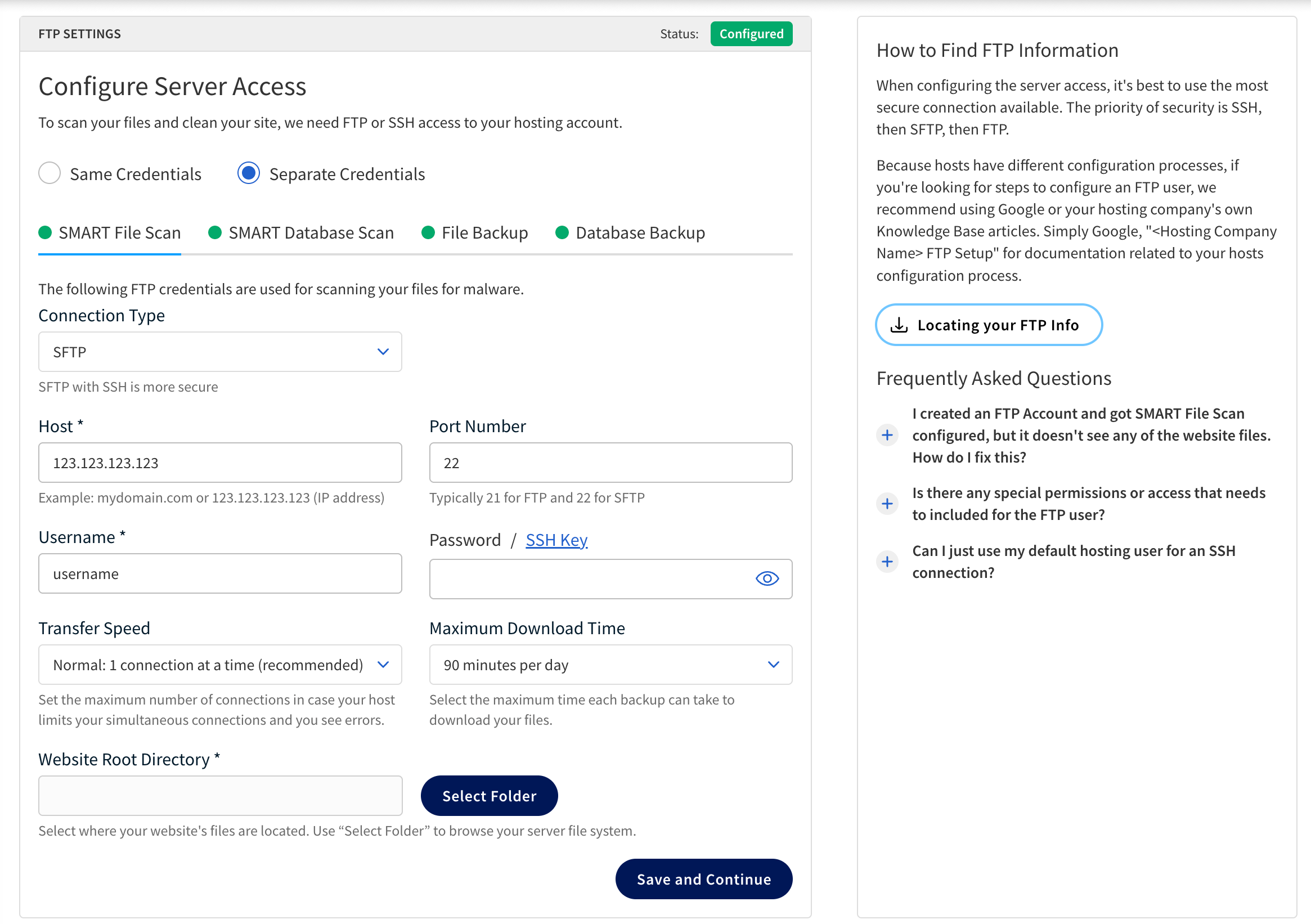
To configure server access for a service, there are two options available:
-
Same Credentials — Use the same connection credentials for all services.
-
Separate Credentials — Provide different connection credentials for each service.
-
Navigate to server access settings.
-
Select Same Credentials.
-
Fill out the information based on the following table:
Field Description Connection Type
The connection protocols available for each service.
-
FTP — File Transfer Protocol, a standard network protocol used for transferring files.
-
FTPS — FTP Secure, an extension to FTP that adds support for the Transport Layer Security (TLS) and the Secure Sockets Layer (SSL) cryptographic protocols.
-
SFTP — SSH File Transfer Protocol, recommended for security.
Host
The domain name or IP address of your server.
For example:
mydomainname.comor123.123.123.123.Port Number
The port number used to connect to the server or database.
-
21 — Typically used for FTP.
-
22 — Typically used for SFTP.
-
## — Optional custom port.
Username
The username required to access the server.
Password/SSH Key
The password or SSH key required for authentication.
If using SFTP, you may need to upload a provided public key to your server. Transfer Speed
The desired transfer speed.
The possible options are:
-
Normal: 1 connection at a time
-
Faster: 2 connections at a time
-
Fastest: 3 connections at a time
Maximum Download Time
The maximum time allowed for downloads.
The possible options are:
-
30 minutes per day
-
60 minutes per day
-
90 minutes per day
-
120 minutes per day
Website Root Directory
The root directory of the location where your website files are stored (e.g.,
/public_html). -
-
Click Save Changes.
-
Navigate to server access settings.
-
Select Separate Credentials.
-
Click on each service tab and fill out the fields based on the information in the following table:
You will only see tabs for the services you have enabled in your SiteLock plan. Field Description Connection Type
The connection protocols available for each service.
-
SFTP — SSH File Transfer Protocol, recommended for secure file transfers.
-
FTP — File Transfer Protocol, a standard network protocol used for transferring files.
-
FTPS — FTP Secure, an extension to FTP that adds support for the Transport Layer Security (TLS) and the Secure Sockets Layer (SSL) cryptographic protocols.
Host
The domain name or IP address of your server.
For example:
mydomainname.comor123.123.123.123.Port Number
The port number used to connect to the server or database.
-
For SMART File Scan, Database Backup, and File Backup, it may be one of the following protocols options:
-
21 — Typically used for FTP.
-
22 — Typically used for SFTP.
-
## — Optional custom port.
-
-
For SMART Database Scan, the database is MySQL and the default port is
3306.
Username
The username required to access the server or database.
Password/SSH Key
The password or SSH key required for authentication.
If using SFTP, you may need to upload a provided public key to your server. Transfer Speed
The desired transfer speed.
The possible options are:
-
Normal: 1 connection at a time
-
Faster: 2 connections at a time
-
Fastest: 3 connections at a time
This setting is not applicable for SMART Database Scan. Maximum Download Time
The maximum time allowed for downloads.
The possible options are:
-
30 minutes per day
-
60 minutes per day
-
90 minutes per day
-
120 minutes per day
This setting is not applicable for SMART Database Scan. Website Root Directory
The root directory of the location where your website files are stored (e.g.,
/public_html). -
-
Click Save and Continue after configuring each service tab.