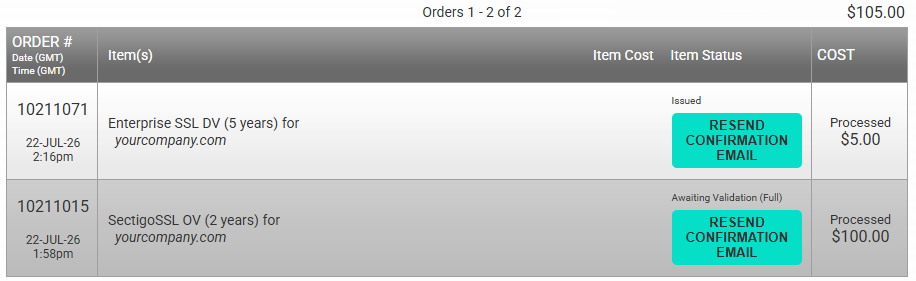
Reports and support documents
Run reports on your orders
-
In your Sectigo account, click E-PKI Manager.
-
Under Management Facilities, click Report on Your Orders.
-
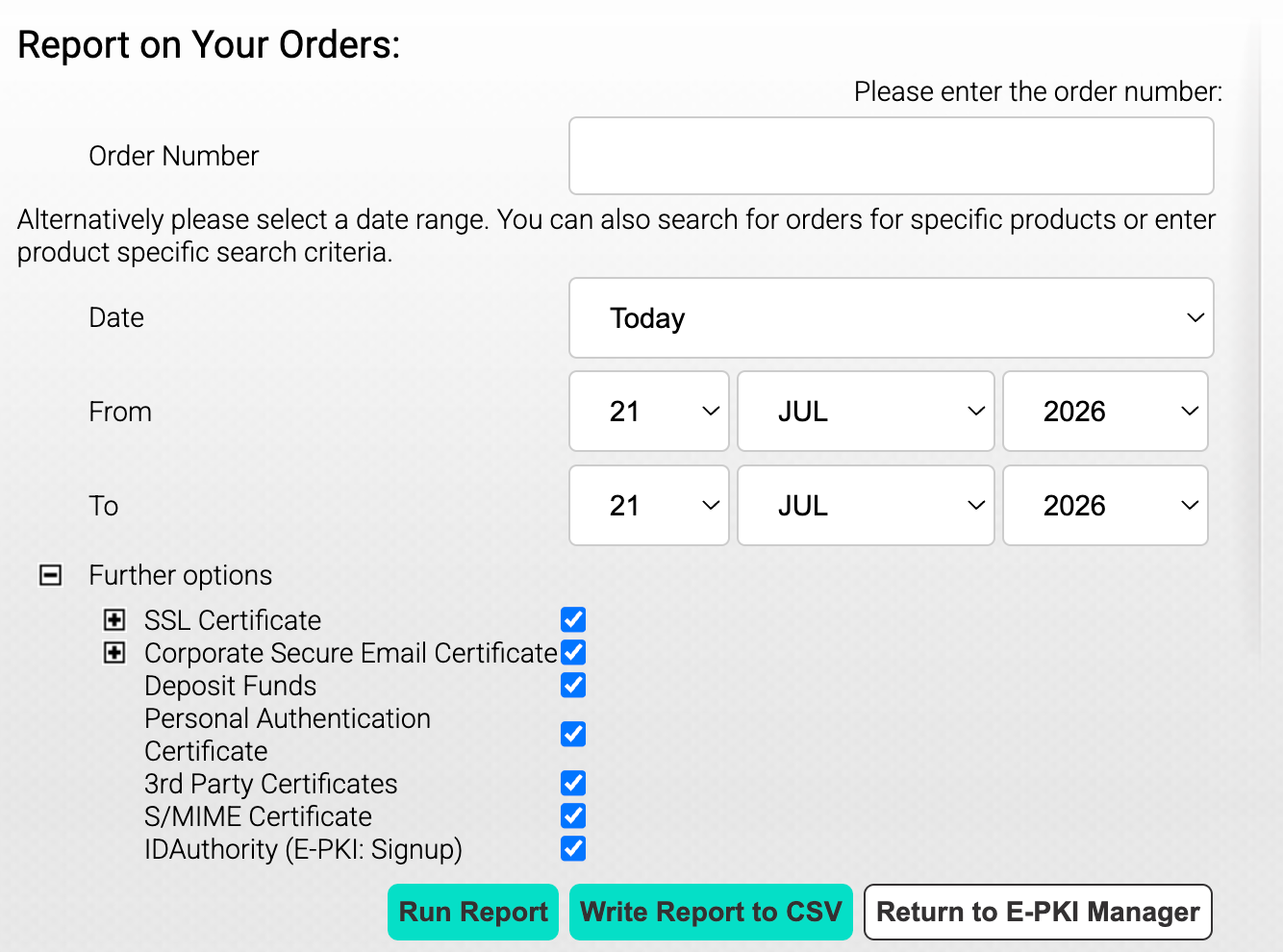
In the page that opens, enter your Order Number.
-
Alternatively, use the date range filter to search for your orders by date.
Enter the Start Date and End Date for the report.
-
Additionally, you can use the menu under Further options to further specify the search criteria for your report.
For SSL Certificates, you can enter the Full Domain Name (FQDN) of the certificate to search for a specific certificate.
For S/MIME Certificates, you can enter the email address, surname, or permissions associated with the certificate to search for a specific certificate.
-
Click Run Report.
The report will display the purchased products with their details.