Ordering a certificate
As an account administrator, you can use the E-PKI Manager to order SSL and S/MIME certificates for your organization.
When you enroll a certificate, the cost of the selected certificate product and validity period is deducted from your account balance.
Certificates are typically issued within one hour, provided the certificate request does not contain invalid or conflicting information.
Certificate request requirements
Before requesting a certificate, ensure that:
-
You have the right to use the domain name for which you are requesting an SSL or S/MIME certificate.
You must own the domain name or be authorized to purchase security products for it.
-
Any individual named in a Corporate Secure Email Certificate request is a legitimate employee or representative of your organization.
| Submitting a fraudulent certificate request violates the E-PKI Manager Subscriber Agreement and may affect both your account status and any applicable Sectigo warranty. |
| Certificate subject details must align with the validated E-PKI account information. Otherwise, revalidation process may be required. |
Order an SSL certificate
-
Log into your Sectigo account using the credentials sent by your Sectigo account manager.
-
Click E-PKI Manager.
-
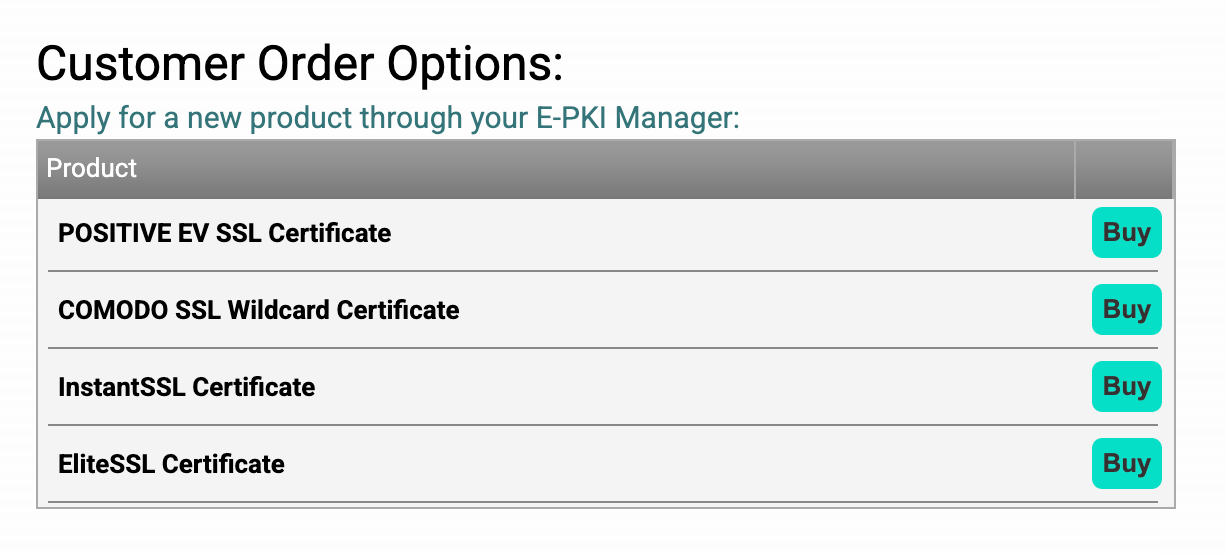
Scroll through Customer Order Options.
-
Next to the SSL certificate product type you want to order, click Buy.
-
Complete the order form:
-
Generate a CSR using the server software that will use the certificate.
-
Copy and paste the CSR into the designated text box.
The CSR must be in PEM format and include the
BEGIN CERTIFICATE REQUESTandEND CERTIFICATE REQUESTlines. -
Select the server software used to generate the CSR from the list.
-
Select the subscription period for your certificate.
The product type and validity period affect the price charged for the certificate. Refer to the pricing band for the buy prices set by your account manager. Discounts are available for multi-year terms.
-
-
Click Next to continue.
-
On the Company Details page, confirm the listed company details and accept the certificate subscriber agreement.
If you want to change the company details, you must contact Sectigo support to update the information in your account. -
Click Next.
-
On the Domain Control Validation page, select the alternative email addresses or alternative methods of domain control validation (DCV), and click Continue. For more information, see Domain Control Validation.
-
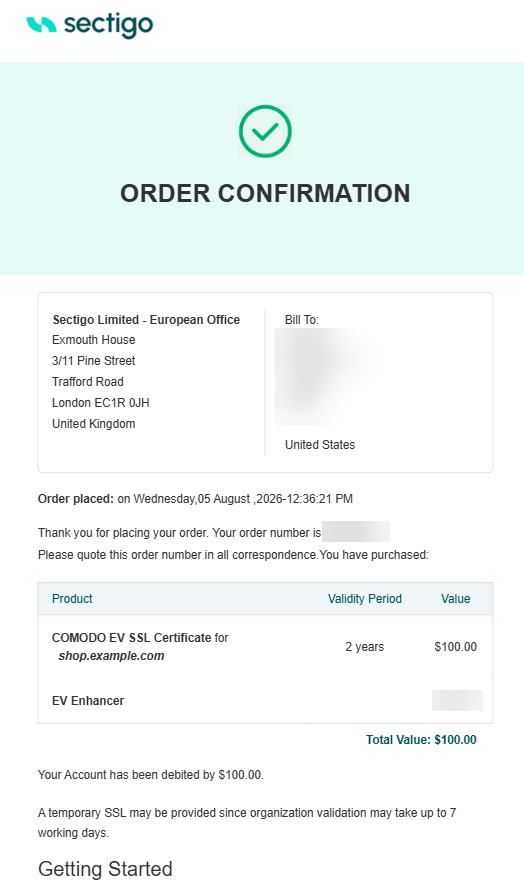
Check the number of the order that has been placed.
-
An order confirmation email and a DCV email will be sent to the user.
Order an S/MIME certificate
Understand S/MIME certificates
Secure/Multipurpose Internet Mail Extensions (S/MIME) is a standard that enables users to digitally sign and encrypt email messages.
An S/MIME certificate contains a public key associated with an email address and, depending on the certificate type, may also include information about an individual or organization.
The certificate can be used to:
-
Digitally sign email messages.
-
Verify the identity of the sender.
-
Encrypt email messages.
-
Decrypt encrypted email messages.
Sectigo offers the following S/MIME certificate profiles:
-
Mailbox Validation (MV) — Validates ownership of an email address.
Sectigo confirms that the applicant controls the requested mailbox but does not verify the identity of an individual or organization.
-
Mailbox Validation Strict (MVS) — Supports email signing and encryption for an individual mailbox.
-
Mailbox Validation Multipurpose (MVM) — Supports email signing, encryption, document signing, and client authentication.
-
-
Organization Validation Multipurpose (OVM) — Validates an organization and includes organization information in the certificate.
The certificate does not contain individual identity information.
-
Sponsored Validation Multipurpose (SVM) — Validates both an organization and an individual.
The certificate can include organization information and the individual’s name.
As an E-PKI administrator, you can request an S/MIME certificate on behalf of an employee.
The employee then enrolls and installs the certificate on their device.
Place an order for an S/MIME certificate
| Before you can place an order for S/MIME certificates, Sectigo must validate the email domain. Domain validation is a one-time process. After the domain is validated, you can request multiple S/MIME certificates for email addresses associated with that domain. |
| To check Id Authority sticky, see the section option. |
-
Navigate to E-PKI Manager.
-
Scroll through Customer Order Options.
-
Next to the S/MIME certificate product type you want to order, click Buy.
-
Use the information provided in the following table to complete the order form.
Field Description Email address
Email address of the person ordering the certificate(s).
Domain name
Select a pre-validated email domain name from the list. If your domain name has not been validated yet, click the
herelink and submit it for validation.Include email address
Check the box to include the email address in the certificate.
Organization identifier
Name of the organization.
Include organization name
Check the box to include the organization name in the certificate.
Forename
The first name of the individual who will be issued the certificate.
Surname
The last name of the individual who will be issued the certificate.
Confirm validation
Check the box to confirm that the identity of the individual above has been validated.
Include names
Check the box to include the individual’s first and last names in the certificate.
Validity period
Select 1 or 2 years.
Depending on which certificate you purchase, fields on the Product Details pages may vary. -
Click Submit.
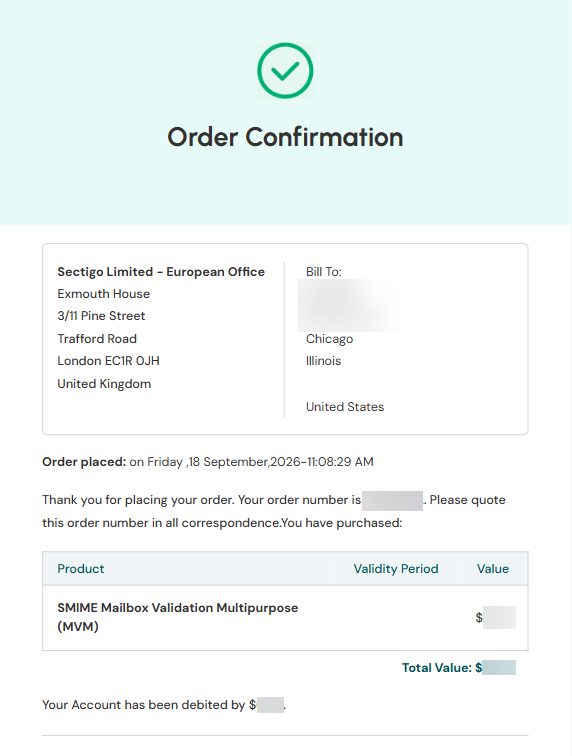
An order confirmation page will be displayed. You will receive emails related to administration, billing, and order confirmation, including a certificate enrollment link.
-
In the confirmation email, click the link to complete your application for the certificate.
-
Review the Subscriber Agreement and select I ACCEPT.
-
Click Submit & Continue.
-
Under Enrollment method, choose one of the following:
-
Generate CSR Automatically — Select the key size and click Generate CSR. The CSR is generated automatically and displayed in the text box.
-
Provide manually generated CSR — Paste the CSR in the text box between the lines
BEGIN CERTIFICATE REQUESTandEND CERTIFICATE REQUEST.
-
-
Click Request My Certificate Now.
You will be redirected to the certificate collection page.
| To check ID Authority sticky, see the section. For more information, see Identity Authority. |
-
Navigate to E-PKI Manager.
-
Scroll through Customer Order Options.
-
Next to the S/MIME certificate product type you want to order, click Buy.
-
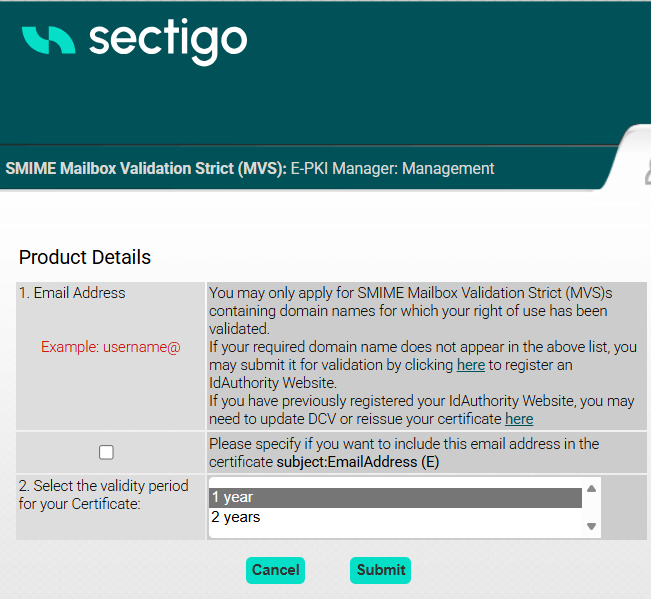
The email address cannot be chosen because the domain is not validated yet.
-
To start the validation process of the domain name, click the corresponding link in the Email Address field.
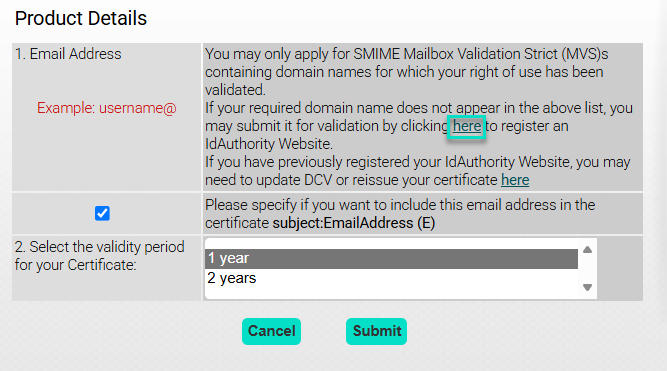
-
If you have previously registered your IdAuthority Website, you may need to update DCV or reissue your certificate. To perform this action, click the link in the Email Address section to open the domain registration page.
For more information about different domain options, see Website Options
-
-
Validate the domain by following the instructions in the DCV email sent to the selected email address or by using the selected DCV method. For more information, see Validate your domain.
-
Return to the Customer Order Options page and click Buy next to the S/MIME certificate product type you want to order.
-
Use the information provided in the following table to complete the order form.
Field Description Email address
Email address of the person ordering the certificate(s).
Domain name
Select a pre-validated email domain name from the list. If your domain name has not been validated yet, click the
herelink and submit it for validation.Include email address
Check the box to include the email address in the certificate.
Organization identifier
Name of the organization.
Include organization name
Check the box to include the organization name in the certificate.
Forename
The first name of the individual who will be issued the certificate.
Surname
The last name of the individual who will be issued the certificate.
Confirm validation
Check the box to confirm that the identity of the individual above has been validated.
Include names
Check the box to include the individual’s first and last names in the certificate.
Validity period
Select 1 or 2 years.
Depending on which certificate you purchase, fields on the Product Details pages may vary. -
Click Submit.
An order confirmation page will be displayed. You will receive emails related to administration, billing, and order confirmation, including a certificate enrollment link.
-
In the confirmation email, click the link to complete your application for the certificate.
-
Review the Subscriber Agreement and select I ACCEPT.
-
Click Submit & Continue.
-
Under Enrollment method, choose one of the following:
-
Generate CSR Automatically — Select the key size and click Generate CSR. The CSR is generated automatically and displayed in the text box.
-
Provide manually generated CSR — Paste the CSR in the text box between the lines
BEGIN CERTIFICATE REQUESTandEND CERTIFICATE REQUEST.
-
-
Click Request My Certificate Now. You will be redirected to the certificate collection page.
Validate your domain
-
From the Product Details page, click the link to open the domain registration page. The Register a Website window appears.
-
In the Location of Website field, enter the domain name.
-
Click Register Website.
-
Click Close Window to return to the Product Details page.
-
You will receive a DCV email with a validation code and a link to complete the DCV process. Copy the verification code from the email. Open the link in the email to complete the DCV process.
-
On the Validation Manager page in the browser, paste the validation code in the corresponding field and click Next.
Domain ownership validation can take up to two business days. -
After validation is complete, the domain will become available in the domain menu.