Billing
Deposit additional funds
-
Log into Sectigo Partner Portal using the credentials sent by your Sectigo account manager.
If you accidentally deleted the email, or you’re experiencing issues trying to log in, contact Sectigo support. -
Click E-PKI Manager.
-
Under Account Actions, click Deposit additional funds.
-
Select the payment method you want to use to deposit funds into your account.
The following options are available:
-
Credit card — Use a credit card to deposit funds into your account.
-
Purchase order — Use a purchase order to deposit funds into your account.
-
In the Secure Payment Page, select Credit Card.
-
Under How much would you like to deposit (US Dollar)?, enter the amount you want to deposit.
-
Click Next.
-
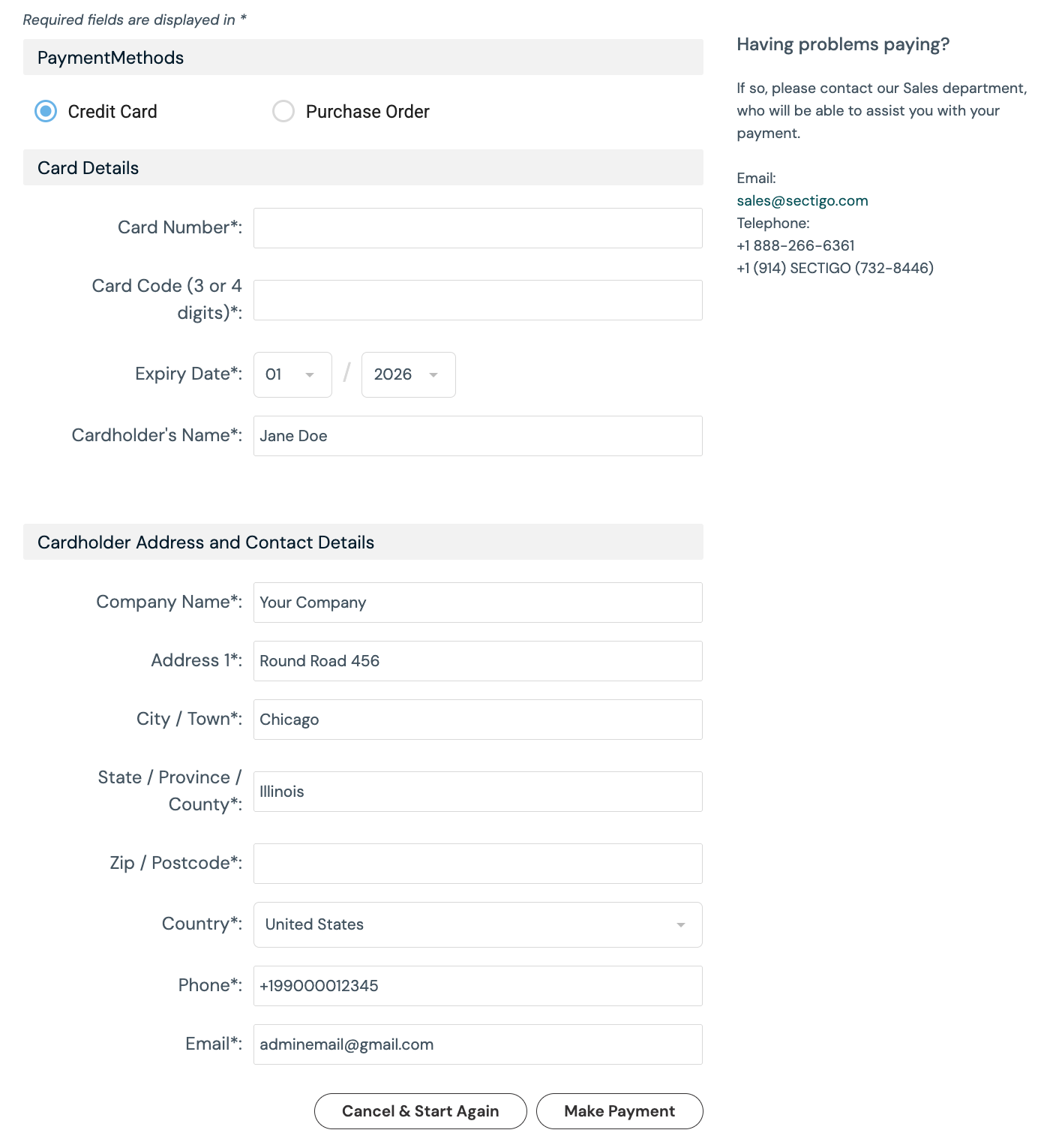
In the page that opens, enter your credit card information.
-
Click Make Payment to complete the transaction.
You will receive a confirmation email once the transaction is complete.
-
In the Secure Payment Page, select Purchase Order.
-
Under How much would you like to deposit (US Dollar)?, enter the amount you want to deposit.
-
Click Next.
-
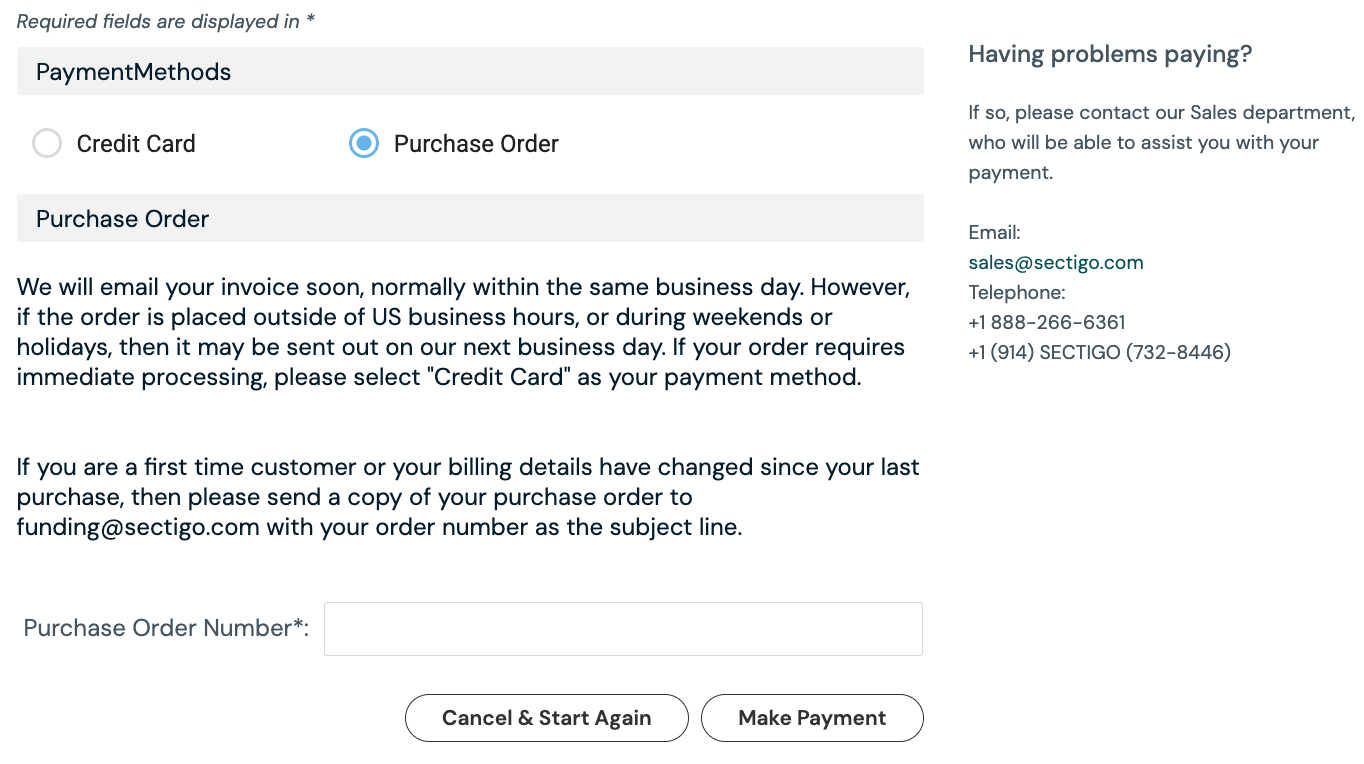
In the page that opens, enter the value for the purchase order number.
-
Click Make Payment to complete the transaction.
You will receive a confirmation email once the transaction is complete.
If you are a first-time customer or your billing details have changed since your last purchase, send a copy of your purchase order to [email protected] with your order number as the subject line.
-
-
View your current buy prices
-
In your Sectigo account, click E-PKI Manager.
-
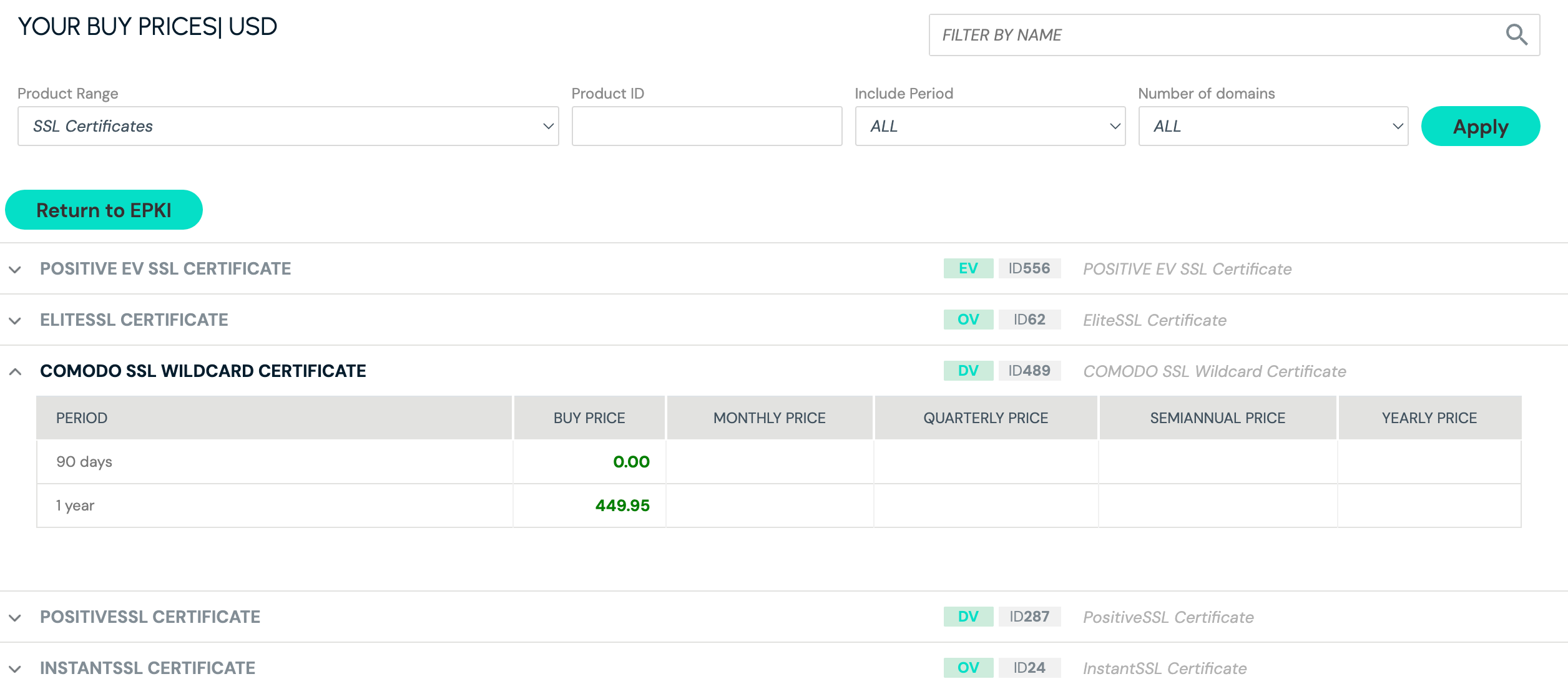
Under Account Actions, click Buy Prices.
-
Use the available filters to view the buy prices.
The following filter options are available:
-
Name — The name of the certificate.
-
Product range — The product range.
-
Product ID — The product ID.
-
Include Period — The validity period.
-
Promo — Promotional offers.
-
-
Click Apply.
-
From the resulting list, click on a certificate to view its buy prices.