Your 2FA
The Your 2FA tab allows you to manage two-factor authentication (2FA) settings for enhanced login security.
This tab is only visible if 2FA under Login Security is enabled.
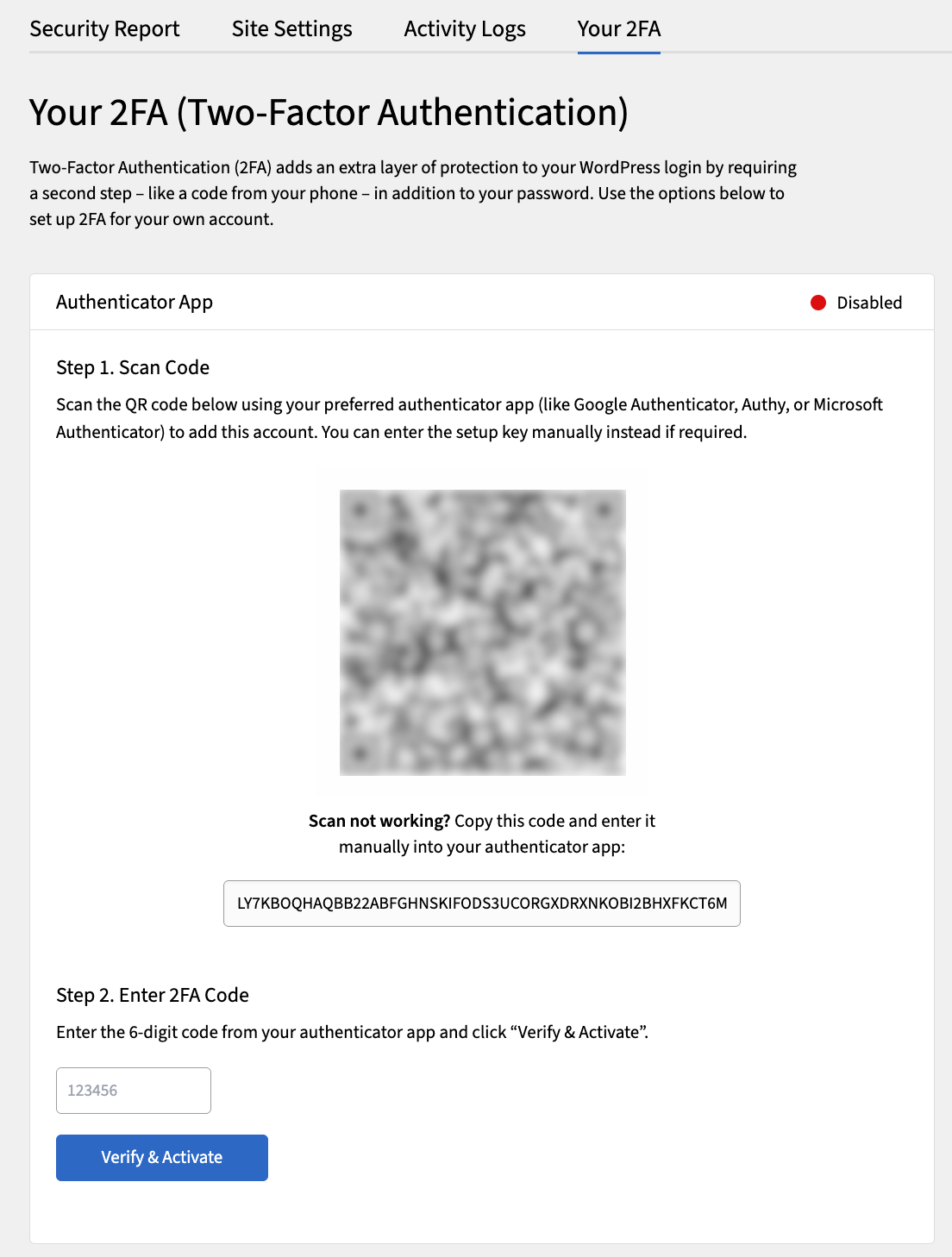
Configure 2FA settings
-
Navigate to the Your 2FA tab.
-
If you haven’t already, download and install an authenticator app on your mobile device (for example, Google Authenticator, Authy).
-
Using your authenticator app, scan the QR code displayed on the Your 2FA tab.
-
Enter the 6-digit code generated by the authenticator app into the Verification Code field.
-
Click Verify & Activate to activate two-factor authentication for your account.
-
Download the recovery codes and store them in a safe place.
These codes can be used to access your account if you lose access to your authenticator app.
You have 30 minutes to download recovery codes after 2FA activation before they disappear. If you lose access to the authenticator app and do not have the recovery codes, contact your administrator to regain access to your account.
Once activated, you will be prompted to enter a 2FA code from the authenticator app each time you log in to your WordPress admin area.