Site Settings
The Site Settings tab allows you to configure the SiteLock WordPress plugin to suit your website’s security needs.
You can manage the following settings in this tab:
-
SiteLock Plan & License
-
Login Security
-
Website Security
SiteLock Plan & License
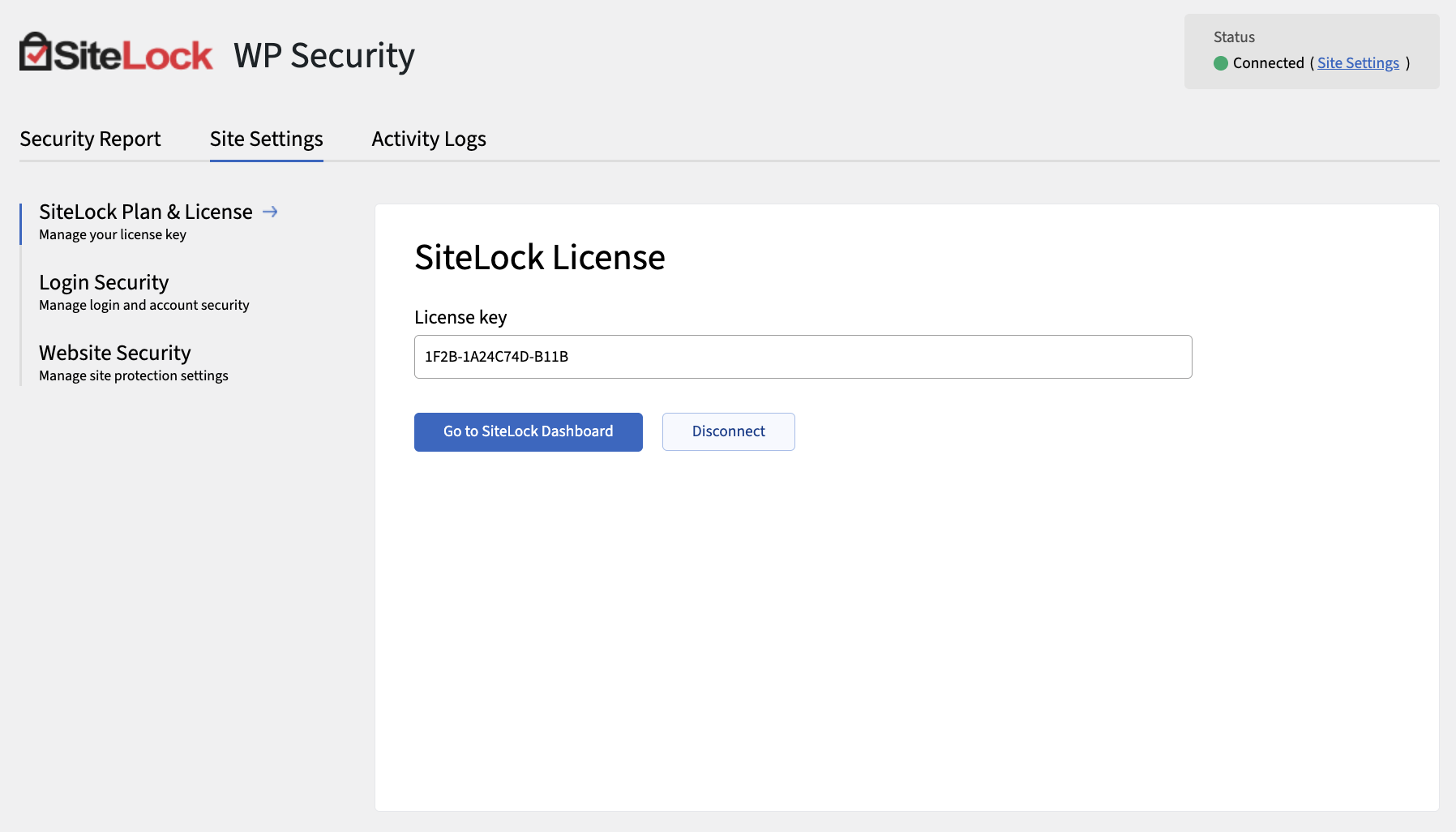
SiteLock Plan & License displays your current SiteLock plan and license status.
Configure your SiteLock plan & license
Follow the steps outlined in Activate your SiteLock WordPress plugin to connect your SiteLock account to the plugin and activate your license.
Once activated, your eligible plan features will load the latest data, and your license status in the top-right corner of the dashboard will display Connected.
Login Security
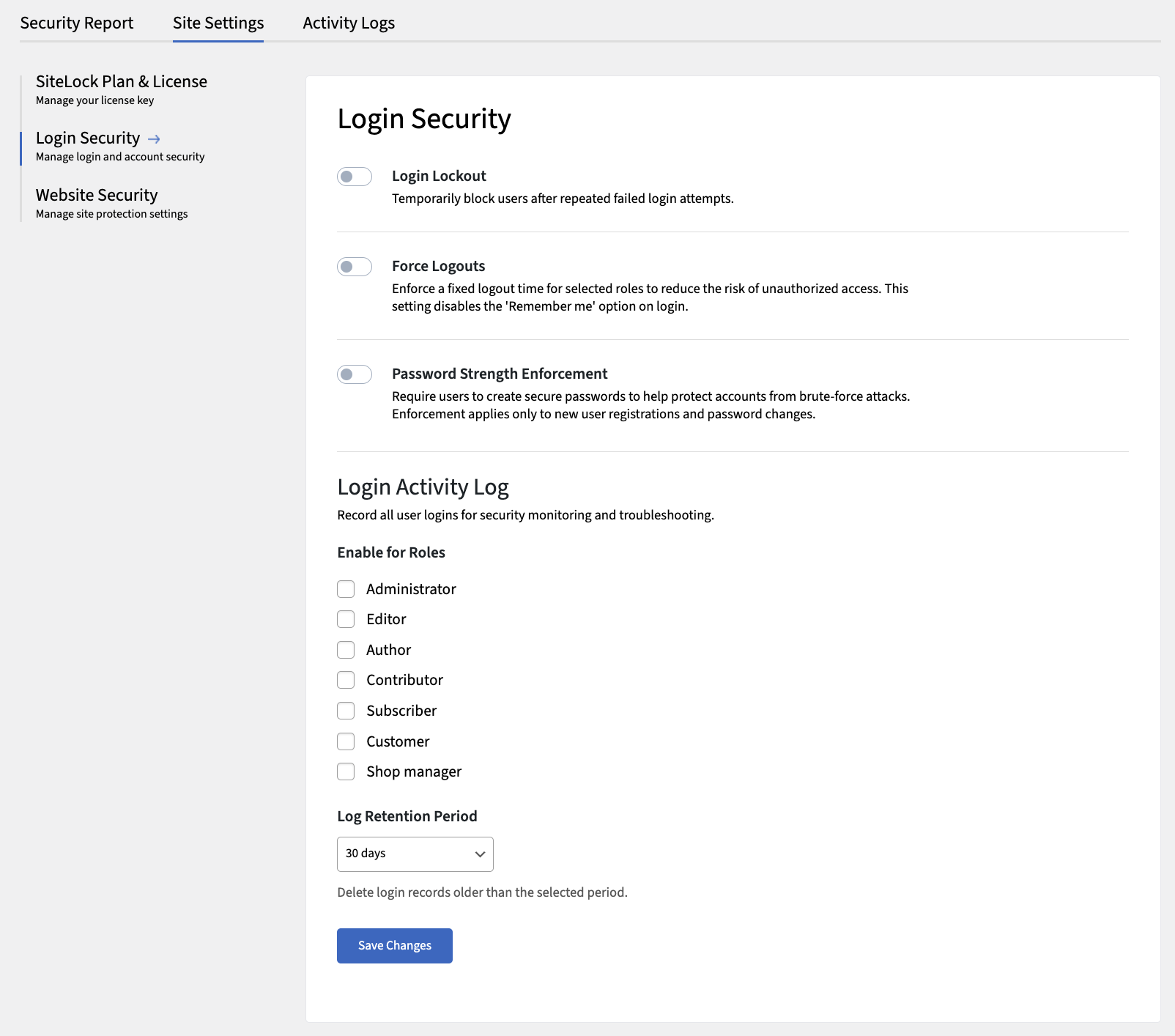
Login Security allows you to enhance the security of your WordPress login page and user accounts by configuring various settings such as password strength requirements, two-factor authentication (2FA), login lockout, and forced logouts.
Enable 2FA for users
-
Navigate to .
-
Toggle 2FA (Two-Factor Authentication) to enable it.
-
Under Required Roles, select the user roles for which 2FA will be required.
-
Under Grace Period, specify the number of days users have to set up 2FA before it is enforced.
-
Click Save Changes.
Disable 2FA for users
-
Navigate to Login Security settings.
-
Toggle 2FA (Two-Factor Authentication) to disable it.
-
In the confirmation prompt, type the word DISABLE to confirm that you want to disable 2FA for all users.
-
Click Confirm to disable 2FA.
Enable login lockout for users
-
Navigate to .
-
Toggle Login Lockout to enable it.
-
Under Login Lockout, configure the following settings:
-
Max Login Attempts — Set the maximum number of failed login attempts allowed before a user is locked out.
-
Lockout Duration — Set the duration (in minutes) for which a user is locked out after exceeding the maximum login attempts.
-
Reset Time — Set the time period (in minutes) after which the failed login attempt count is reset.
-
-
Click Save Changes to apply your settings.
Enable force logouts for users
-
Navigate to .
-
Under Force Logouts, configure the following settings:
-
Excluded for Roles — Select the user roles that should be exempt from forced logouts.
-
Time Period — Set the duration (in hours) of inactivity after which users are automatically logged out.
-
-
Click Save Changes to apply your settings.
Customize password strength requirements for users
Password strength is evaluated using the industry-standard open-source tool zxcvbn, which analyzes passwords for complexity and resistance to common guessing techniques. This ensures that users create passwords that are difficult to hack.
You can specify the minimum required password strength for each user role, ensuring that higher-privileged accounts (such as Administrators) have stricter requirements.
-
Navigate to .
-
Toggle Password Strength Enforcement to enable it.
-
Choose the desired password strength requirement for each user role.
There are three enforcement levels for password strength:
-
Disabled — No password strength requirements are enforced.
-
Medium — Passwords must meet a moderate level of complexity, as determined by zxcvbn (typically requiring a mix of characters and a minimum length).
-
Strong — Passwords must achieve a high strength score in zxcvbn, requiring longer passwords with a greater variety of character types.
-
-
Click Save Changes to apply your settings.
Enable login activity log
-
Navigate to .
-
Toggle Login Activity Log to enable it.
-
Under Enable for Roles, select the user roles for which login activity will be logged.
-
Under Log Retention Period, specify the number of days to retain login activity logs before they are automatically deleted.
-
Click Save Changes to apply your settings.
Website Security
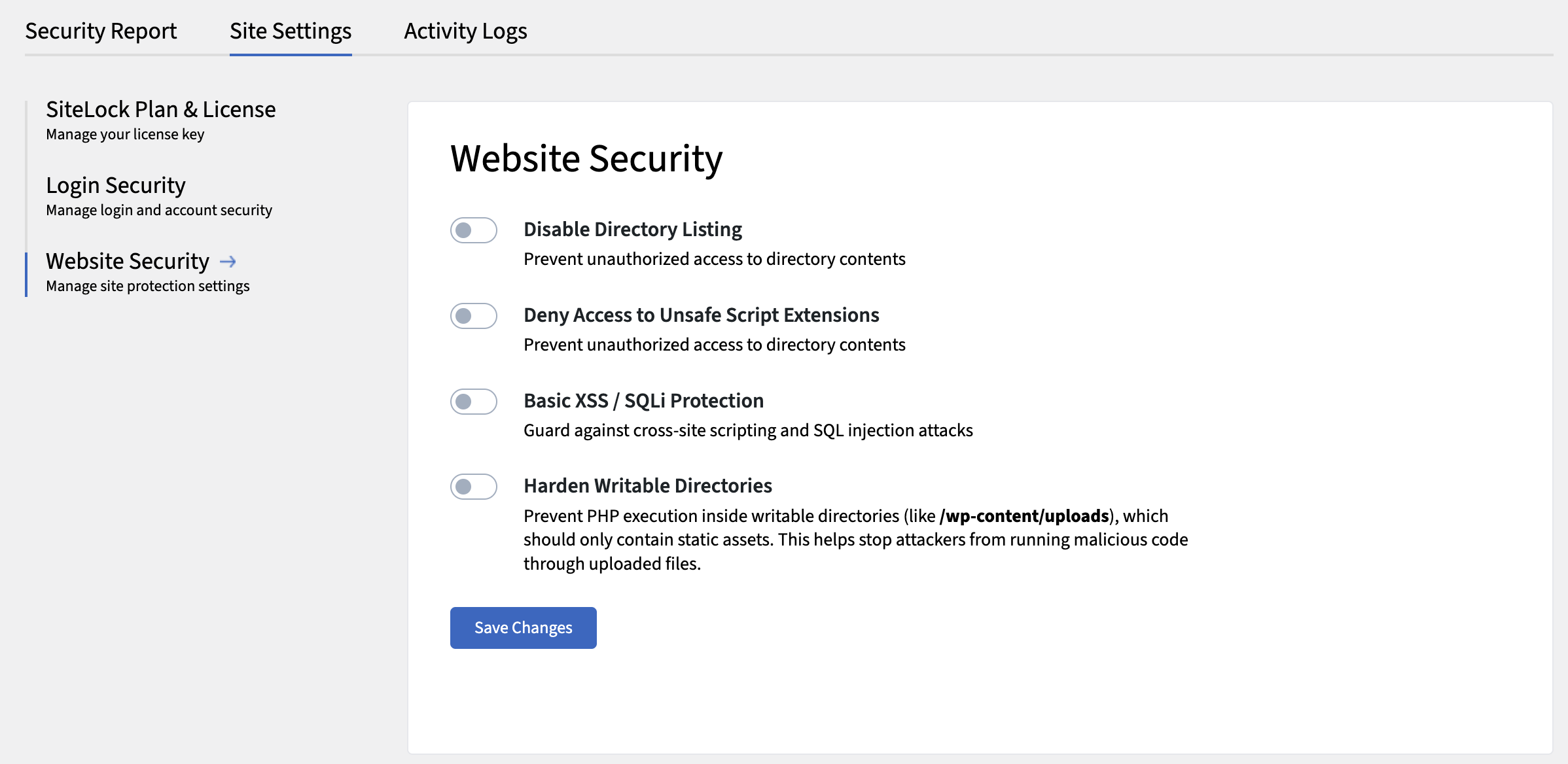
The Website Security tab allows you to configure various security settings for your WordPress site.
Customize website security settings
-
Navigate to .
-
Toggle the following settings to enable or disable them:
-
Disable Directory Listing — Activate this to prevent visitors from viewing directory contents.
-
Deny Access to Unsafe Script Extensions — Activate this to block access to potentially dangerous script file types.
-
Basic XSS/SQLi Protection — Activate this to add basic protection against common web attacks.
-
Harden Writable Directories — Activate this to restrict write permissions on sensitive directories.
-
-
Click Save Changes.