Using the connector
This page describes how to manage the certificate lifecycle on Avi Load Balancer and how to manage system alerts.
Enroll a certificate
You can enroll a certificate using the Avi UI or bash script.
| Once enrolled, you can view certificates in SCM on the page. Click on a certificate to view its details. |
Enroll a certificate using the Avi UI
-
In Avi Load Balancer, select the Templates tab.
-
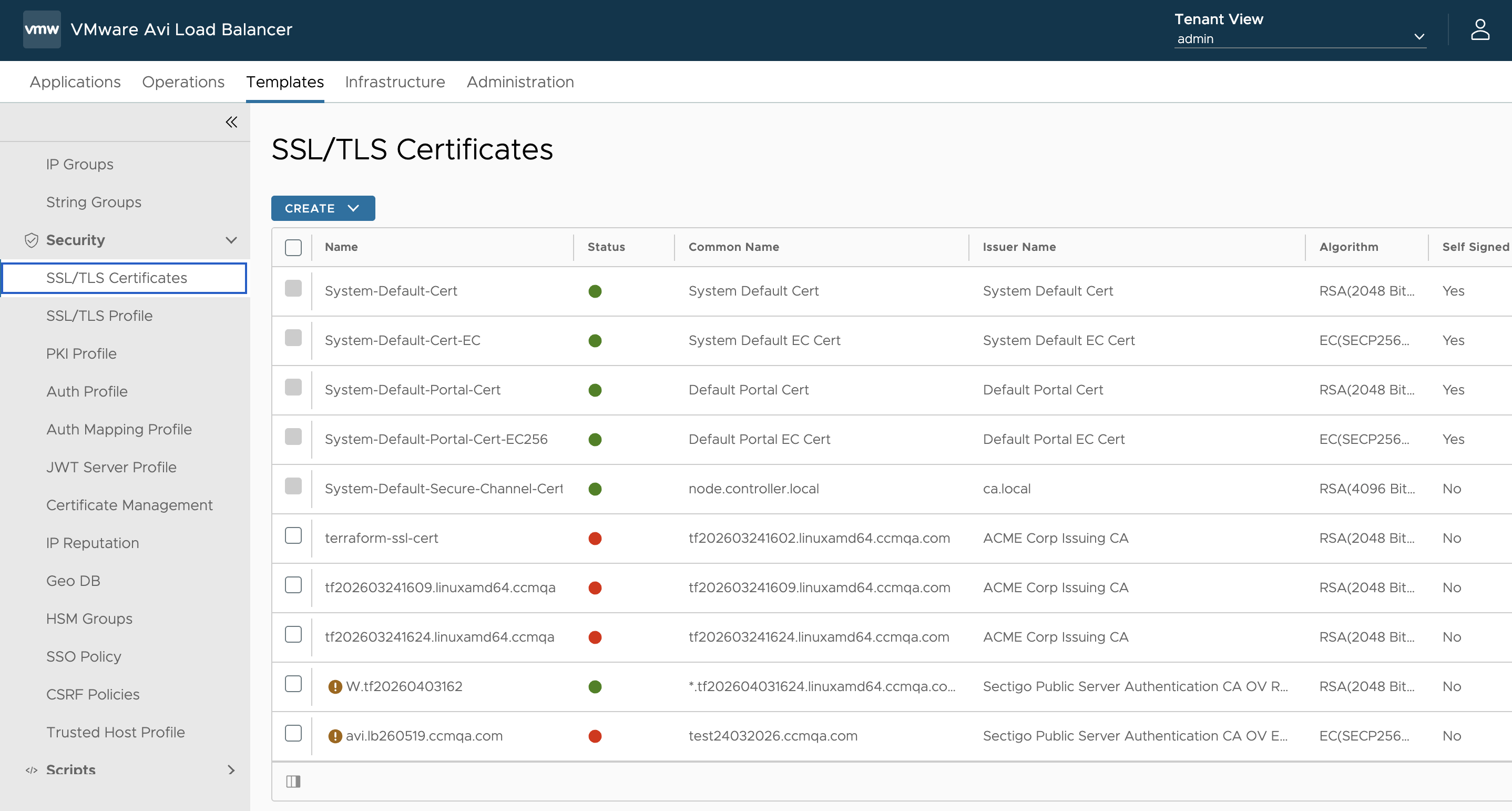
From the left navigation panel, select Security > SSL/TLS Certificates.
-
Click Create.
-
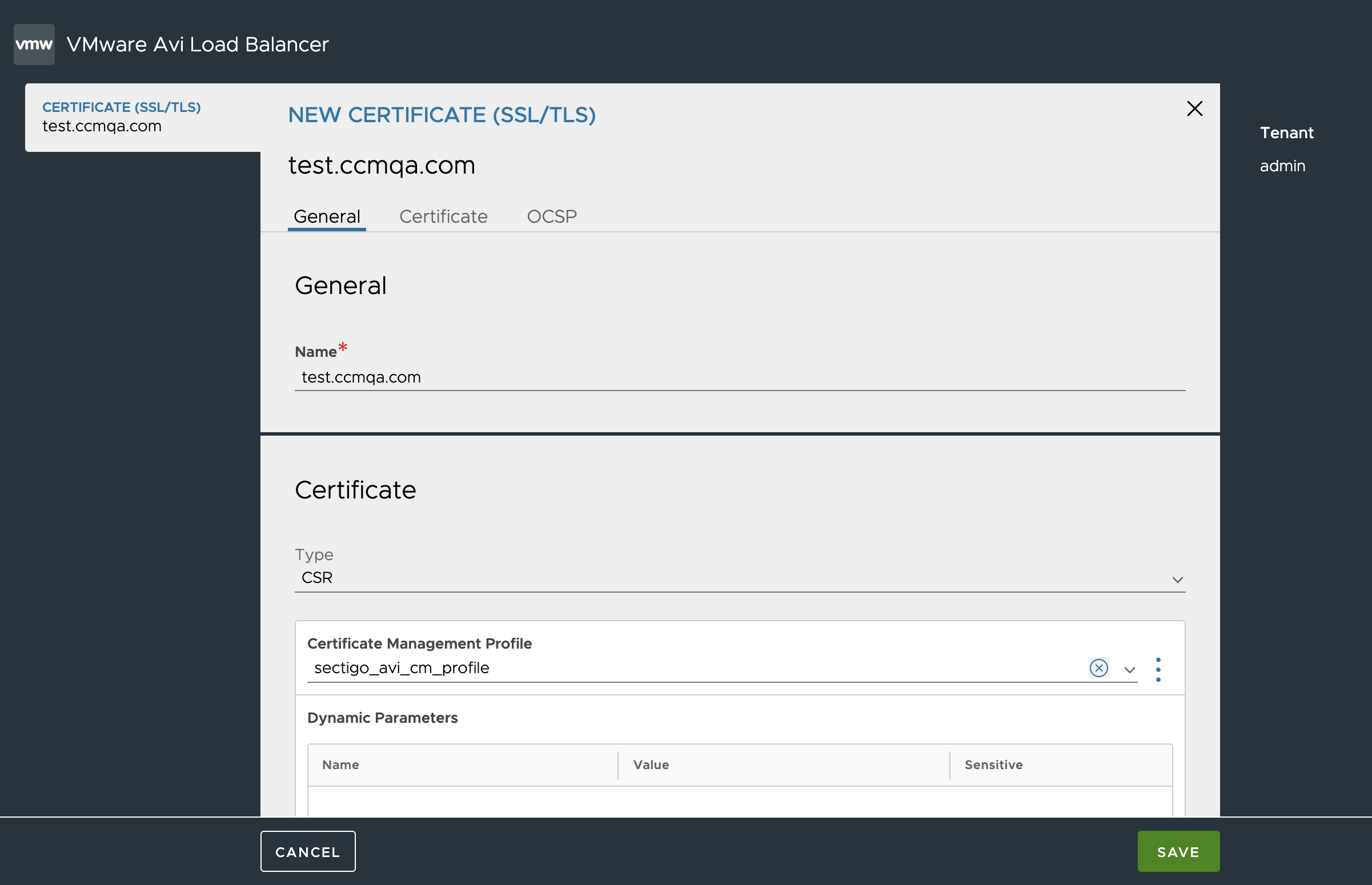
In the New Certificate (SSL/TLS) window, complete the fields for the certificate, referring to the following table.
Field Description General
Name
Required. The display name for this certificate in Avi (for example, www.example.com).
Certificate
Type
Select
CSR.Certificate Management Profile
Required. Select the Sectigo certificate management profile you created earlier.
Dynamic Parameters
Populated automatically from the selected profile.
You can override
Issuer(must remain Sectigo) andsectigo_ssl_cert_validity(validity in days) here if you need per-certificate values.HSM Group
Optional. Use when the private key must be stored in a Hardware Security Module, otherwise leave unset.
Is Federated
Optional. Enable only if you’re using Avi GSLB and want this certificate replicated across all sites in the federation.
Common Name
The primary domain the certificate protects (for example, www.example.com).
Email
Contact email address included in the certificate subject.
Organization
Legal organization name.
Organization Unit
Department or unit within the organization.
Locality or City
City the organization is located in.
State Name or Province
State or province the organization is located in.
Country
Two-letter ISO country code (for example, US).
Algorithm
Signing algorithm for the key pair. The options are
RSAorECDSA.Key Size
Key size for the selected algorithm. The options are:
-
RSA:
2048or4096 -
ECDSA:
P-256
Subject Alternate Name (SAN)
Additional domains the certificate should cover.
Click ADD and enter each SAN.
OCSP
Enable OCSP Stapling
Optional. Enable if you want Avi to staple OCSP responses to TLS handshakes so clients don’t have to contact the OCSP responder directly.
If OCSP stapling is not enabled, the status for a certificate will appear green, but hovering over it reveals a message that OCSP stapling is not enabled. -
-
Click Save.
The enrolled certificate should appear on the SSL/TLS Certificates page. Make sure the status is green and when you hover over it there are no warnings or errors.
Enroll a certificate using the bash script
-
Open the
enroll.shscript in your preferred editor. -
Specify CSR information in the
certificate_paramsJSON object.certificate_params='{ "name": "my-server-cert", "common_name": "www.example.com", "subject_alt_names": [ "www.example.com", "example.com" ], "country": "US", "state": "California", "locality": "San Francisco", "organization": "Example Inc", "organization_unit": "IT", "email_address": "[email protected]", "key_params": { "algorithm": "SSL_KEY_ALGORITHM_EC", "key_type": "SSL_KEY_EC_CURVE_SECP256R1" }, "enable_ocsp_stapling": true }'You may also update the value of the
algorithmorkey_typekey.Algorithm Key Type SSL_KEY_ALGORITHM_RSAThe possible values are
SSL_KEY_2048_BITSandSSL_KEY_4096_BITS.SSL_KEY_ALGORITHM_ECThe possible values are
SSL_KEY_EC_CURVE_SECP256R1andSSL_KEY_EC_CURVE_SECP384R1. -
Run the enrollment script.
enroll.sh -
Once the enrollment is complete, confirm that the enrolled certificate is visible on the SSL/TLS Certificates page in Avi Load Balancer.
Renew a certificate
| Renewal updates the existing Avi certificate object in place (with the same UUID). The certificate’s private key and every virtual service reference to it are preserved across renewals. |
The Avi Controller automatically attempts to renew certificates when an expiration alert is fired.
The alert triggers the connector to do the following:
-
First, the connector checks the issuer of the certificate. Only certificates issued by
Sectigo(or legacyComodo,USERTrust,AAA Certificate Services) are eligible.-
The connector will skip certificates issued by any other CA, even if an alert is fired.
-
-
Before contacting Sectigo, the connector checks the certificate’s revocation and expiry status. If neither indicates a problem, the alert is ignored.
-
If a previous attempt is still pending in Sectigo, the connector reuses that pending request instead of issuing a new one.
-
After issuance, the connector resolves the issuing CA on the Controller and uploads the certificate together with the full chain.
| After an alert fires, the connector polls Sectigo every 30 seconds for the issued certificate, up to a maximum of 10 minutes. A typical renewal completes in under a minute, but may take up to 10 minutes when the CA is slow. |
By default, the system generates expiration alert notifications 30 days, 7 days and 1 day before expiry, and will attempt a renewal on the last-but-one time interval.
You can customize when expiry notifications are sent by changing the ssl_certificate_expiry_warning variable.
See the Avi Load Balancer documentation for more information.
Manage alerts
The Avi Controller automatically attempts to renew certificates when an expiration alert occurs.
The control script checks that the certificate exists and the value of its Issuer custom field is equal to Sectigo (or legacy Comodo, USERTrust, AAA Certificate Services).
If the Issuer field doesn’t exist or has an incorrect value, the script won’t replace certificates that are expired or revoked.
| The Alert Action must run under the same tenant that owns the SSL/TLS certificate. If the alert runs under a different tenant, the connector cannot find the certificate and the renewal silently fails. |
Configure an alert
-
In Avi Load Balancer, select the Operations tab.
-
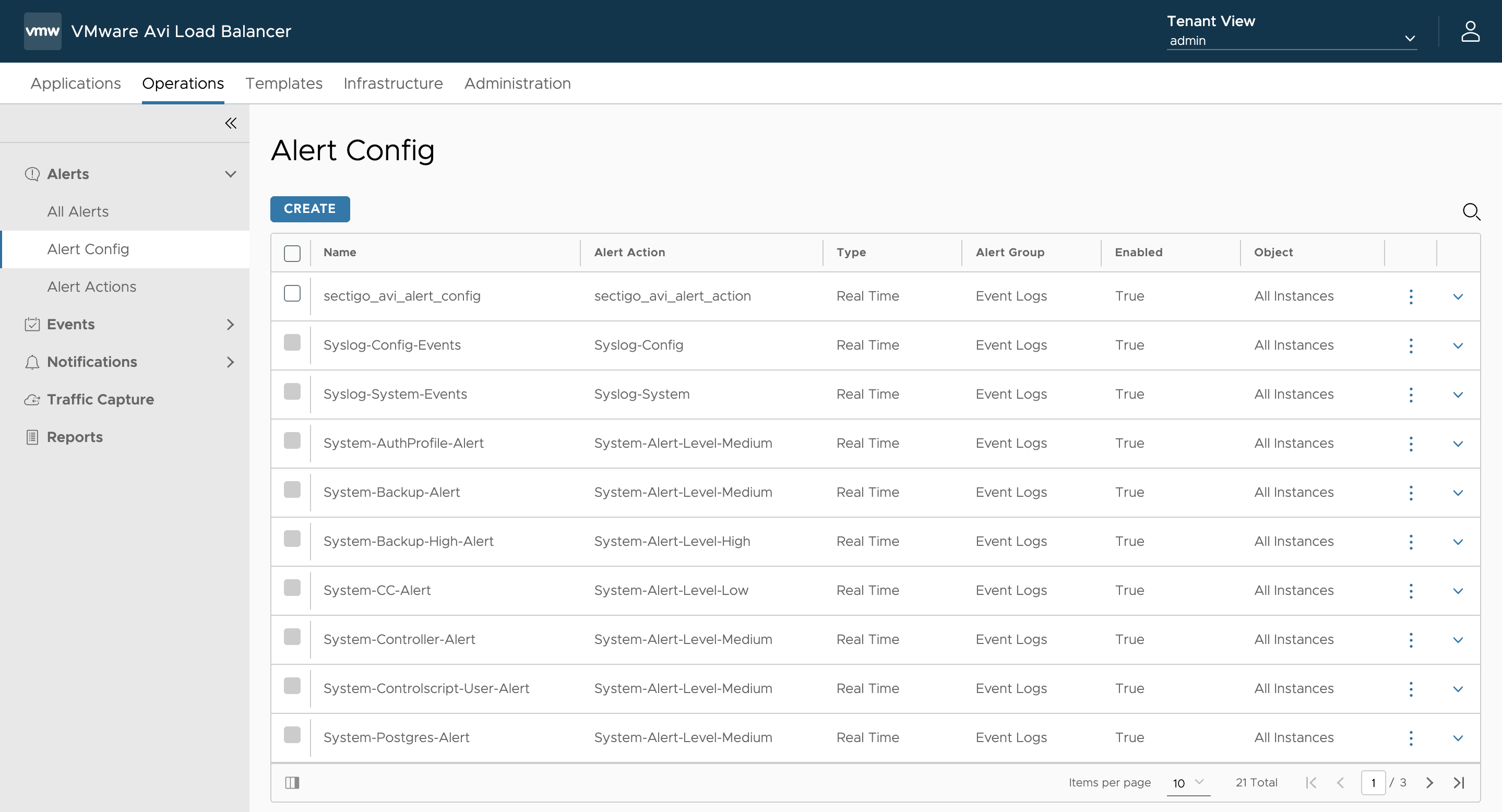
From the left navigation panel, select .
-
Click Create.
-
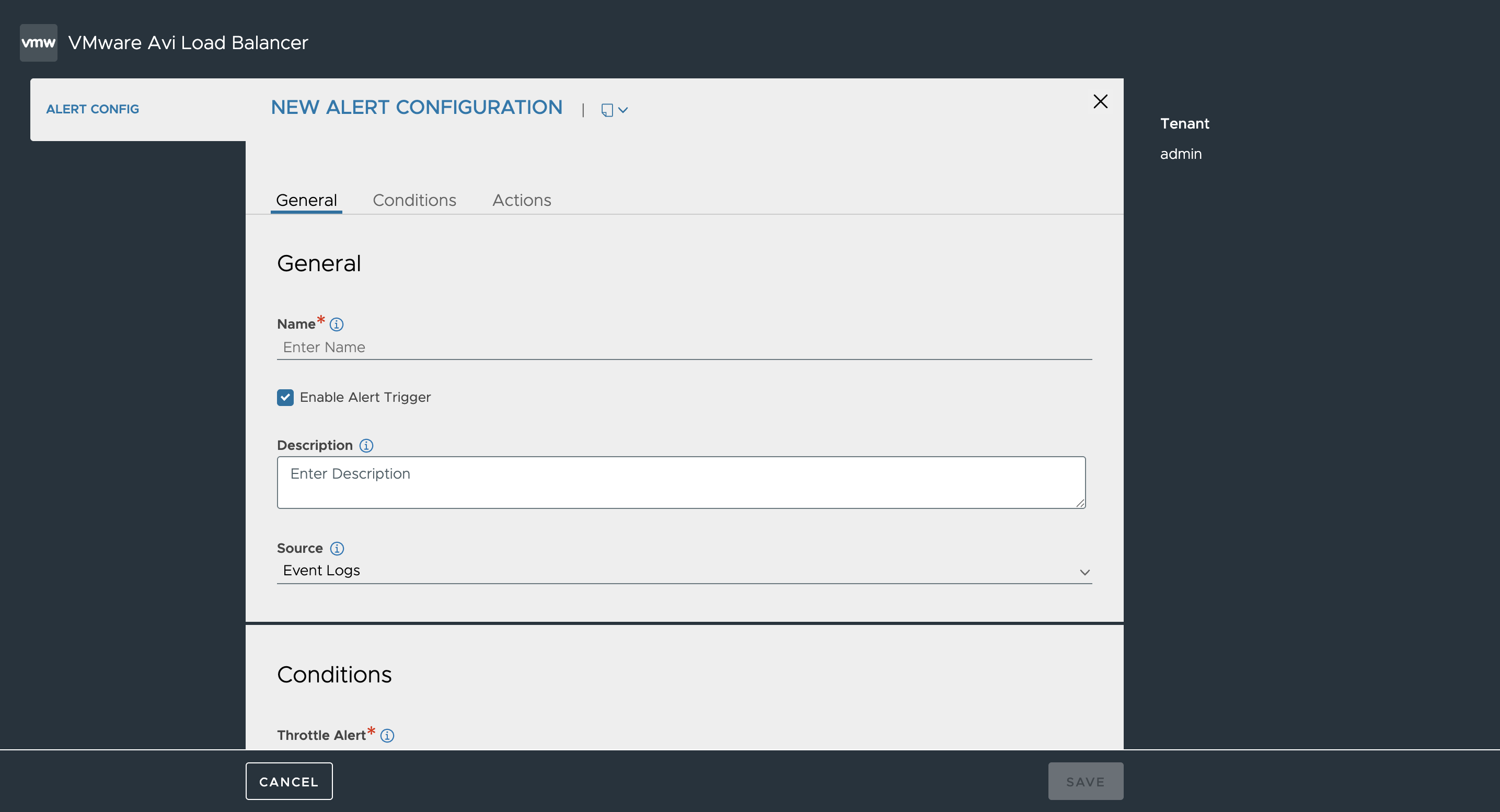
In the New Alert Configuration window, complete the fields in each tab, referring to the following table.
Field Description General
Name
Required. Display name for the alert configuration.
Enable Alert Trigger
Default is
On. WhenOff, the alert does not fire.Description
Optional free-text description.
Source
Default Event Logs. The Sectigo connector relies on Avi’s built-in
SSL_CERT_EXPIRE/SSL_CERT_REVOKEDevent log entries.Conditions
Throttle Alert
Required. Minimum seconds between repeated firings of the same alert. Default
600is recommended since lower values can cause duplicate enrollments.Object
Options are:
None/Virtual Service/Service Engine/Pool. SelectNoneso the alert applies to all SSL/TLS certificates in the tenant.Number of Occurrences
Number of matching events that must occur before the alert fires. Default
1is recommended.Category
Options are:
Real Time/Rolling Window. SelectReal Timeto fire an alert as soon as the event happens.Events
Required. Click ADD and select two events:
SSL Cert ExpireandSSL Cert Revoked.AutoScale Alert
Leave unchecked. This option is for autoscaling notifications, not certificate alerts.
Actions
Field
Description
Alert Action
Required. Select an alert action.
Alert Expiry Time
How long (in seconds) the alert stays active after being raised. Default 86400 (24 hours) is fine.
-
Click Save.
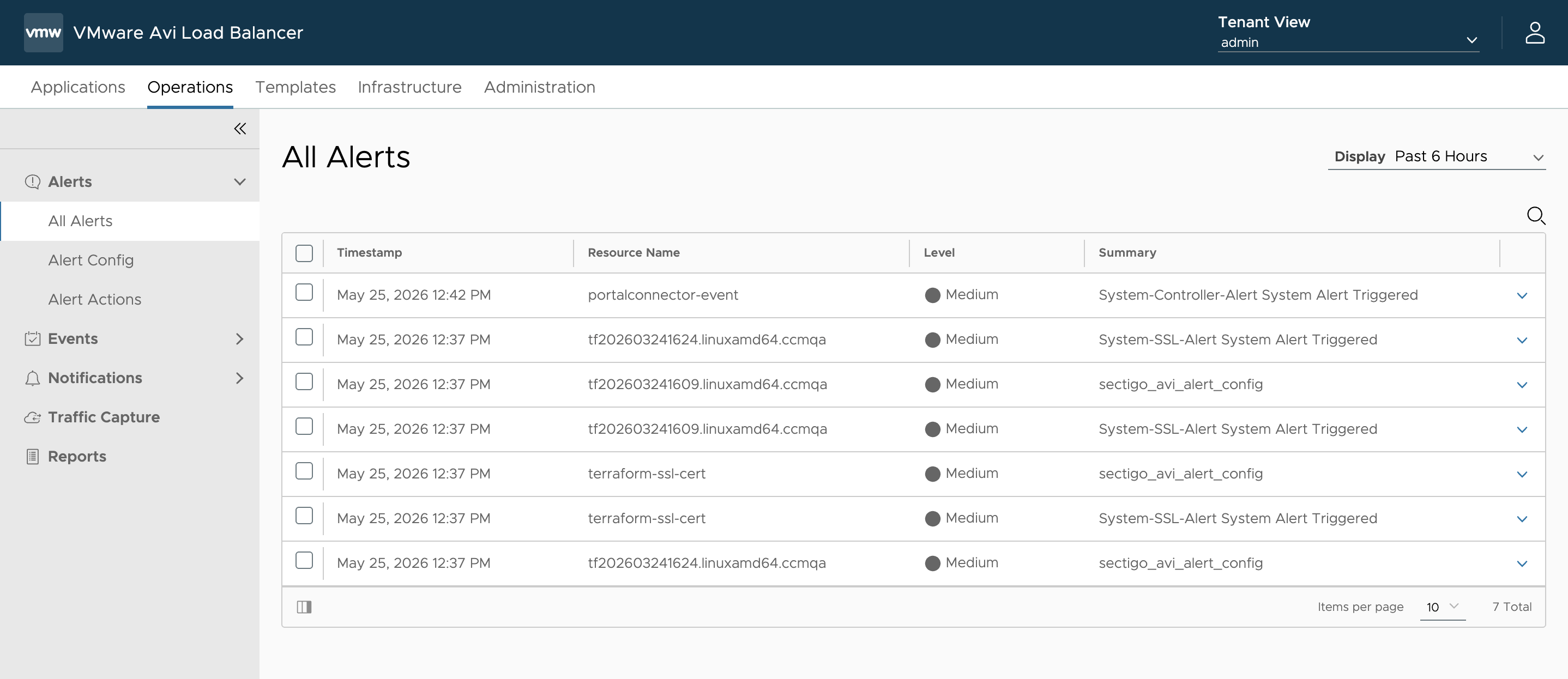
View existing alerts
All the existing alerts can be viewed by going to Operations > Alerts > All Alerts.
Edit an alert
To edit an alert:
-
Navigate to Operations > Alerts > All Alerts.
-
Select the box next to the alert you want to edit and click the EDIT button that appears at the top of the page.
-
In the Edit Alert Configuration window, make your changes referring to the field descriptions in Configure an alert.
Revoke a certificate
Certificates are revoked either automatically once the expiry date has been reached, or manually in SCM. A revoked certificate will have a red icon in its status field.
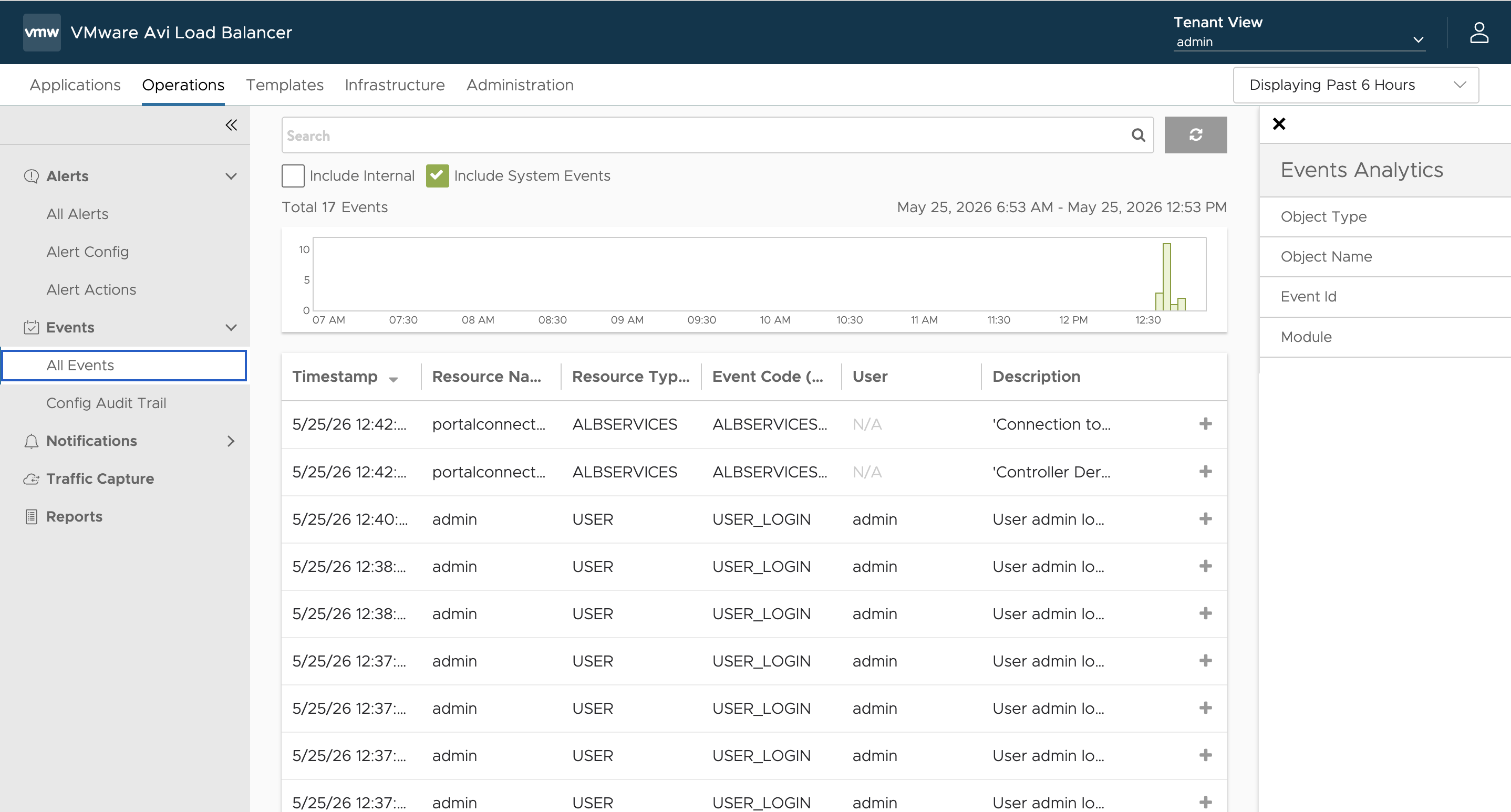
View the logs
Logs record timestamped events that occur within the system. Once enabled, all logs for events that occur within the Avi Controller can be viewed on the Events page:
-
In Avi Load Balancer, select the Operations tab.
-
From the left navigation bar, select Events > All Events.
Troubleshooting
The following table describes the three most common failure scenarios.
| Issue | Cause | Resolution |
|---|---|---|
Repeated certificate enrollments / SCM credit drain. The connector keeps requesting new certificates but they never appear installed on Avi. |
Avi is rejecting the import. This is often a chain ordering issue. On older versions of the connector the pending Sectigo request is not remembered between attempts so each retry triggers a fresh enrollment. |
Upgrade the connector to the current release. |
Not found error on import. Avi is rejecting the imported certificate because it can’t find the intermediate or root CA. |
Sectigo has rotated its issuing CA chain and the new CA certificate is not yet installed on the Avi Load Balancer Controller’s certificate store. |
Import the new Sectigo issuing CA certificate into the Controller’s certificate store before triggering enrollment. |
Certificate is never renewed. The alert fires but no new certificate is issued. |
The Issuer custom field on the certificate management profile is missing, empty, or set to something other than Sectigo. |
Confirm the management profile has Sectigo in the Issuer field and that the parameter is marked dynamic. |